Lottie Animations in Next.js with lottie-react: Setup to Playback Control
Published: October 8, 2026 · 8 min read
Use Lottie in Next.js with lottie-react: loading JSON via import or /public, dynamic import for a lighter first load, playing only in view, and reduced motion, with code.
Your designer sent a Lottie animation. Here is how to run it in Next.js
Your designer handed over the hero animation as a JSON file, and now you are stuck on how to get it into your Next.js app.
That JSON is a Lottie animation. In React, you display it with a library called lottie-react.
Here is the short answer: put the JSON in the public folder and pass its path to lottie-react's Lottie component. Then load it after the page and play it only while it is on screen, and the page stays light.
This guide covers:
Installing lottie-react and the shortest code that shows an animation
Importing the JSON versus loading it from public
Dynamic import to cut the JavaScript loaded up front
Playing when the animation enters the screen and pausing when it leaves
Reduced motion support and screen reader considerations
The code assumes the Next.js 15 App Router and lottie-react 3.
Why use Lottie animations
Lottie is an animation format: motion built in tools like After Effects, exported as JSON. From After Effects, the usual exporter is a plugin called Bodymovin.
Compared with GIFs and video, it has three main advantages:
Shapes are stored as numbers, so lines stay crisp at any size
Play, pause, and jumping to a specific frame can be controlled from code
For line- and shape-based motion, the file tends to be smaller than an equivalent video
It is a poor fit for photos or live footage, where video is lighter. Building a hero on a background video is covered in https://design-layer.com/en/articles/nextjs-video-hero-guide.
Sites such as LottieFiles host public animations you can browse. Check each license before you use one.
Three steps to show Lottie in Next.js
From least to most effort:
Step 1: Install lottie-react and display the JSON
Step 2: Use dynamic import so it loads after the page renders
Step 3: Switch between playing and paused as it enters and leaves the screen
Step 1 is enough for a small animated icon. For a large animation in the hero, go all the way to Step 3.
Step 1: Display a Lottie animation with lottie-react
Install the library with npm i lottie-react. lottie-web, the engine that does the drawing, comes with it.
Put the JSON you received at public/lottie/plant.json. Files in public are served at a URL like /lottie/plant.json.
Keep the display component in its own file marked with "use client", the marker for browser-side code. When you add playback control later, this is the only file you touch.
"use client";

import { Lottie } from "lottie-react";

type Props = {
  src: string | object;
  className?: string;
};

export default function LottiePlayer({ src, className }: Props) {
  return (
    <Lottie
      src={src}
      autoplay
      loop
      aria-hidden="true"
      className={className}
    />
  );
}
Size the Lottie component with className
The Lottie component fills whatever box it sits in. A box with no height shows nothing.
Set the size with className, such as aspect-square or h-64. A fixed aspect ratio also keeps the layout from shifting when the animation appears.
Importing the JSON versus loading it from public
You can also import the JSON as a module. The animation data then ships inside your JavaScript.
import: no wait, it draws right away. In exchange, your JavaScript grows by the size of the JSON
public path: your JavaScript stays light. The JSON is fetched separately just before it is shown
As a rule of thumb, import small icons of a few KB, and serve hero animations of tens of KB or more from public.
"use client";

import LottiePlayer from "./LottiePlayer";
import plant from "@/animations/plant.json";

export function PlantIcon() {
  return <LottiePlayer src={plant} className="size-12" />;
}
Step 2: Dynamically import Lottie to lighten the first load
lottie-react's engine (the full build of lottie-web 5.13) is about 300KB before compression. Loaded normally, it adds that much to the page's initial JavaScript.
With Next.js dynamic, you split this component into its own chunk and load it later. Adding ssr: false skips server rendering and loads it only in the browser.
Older version combinations could throw "document is not defined" during server rendering. Loading only in the browser removes that worry too.
"use client";

import dynamic from "next/dynamic";

const LottiePlayer = dynamic(() => import("./LottiePlayer"), {
  ssr: false,
});

type Props = {
  src: string;
};

export function LazyLottie({ src }: Props) {
  return (
    <div className="mx-auto aspect-square w-full max-w-sm">
      <LottiePlayer src={src} className="h-full w-full" />
    </div>
  );
}
Write ssr: false inside a browser-side file
In Next.js 15, ssr: false is not allowed inside a Server Component; the build fails.
That is why dynamic is called inside LazyLottie, which carries the marker. The page just renders this component as usual.
import { LazyLottie } from "@/components/LazyLottie";

export default function Page() {
  return (
    <section className="mx-auto grid max-w-5xl items-center gap-10 px-6 py-24 md:grid-cols-2">
      <div>
        <h1 className="text-4xl font-semibold tracking-tight">
          Team knowledge that grows like a plant
        </h1>
        <p className="mt-4 text-zinc-600">
          Notes link up on their own, so you find them when you need them.
        </p>
      </div>
      <LazyLottie src="/lottie/plant.json" />
    </section>
  );
}
Reserve the box before Lottie loads
With dynamic import, nothing is drawn until the component arrives. The outer div has an aspect ratio so the space is reserved first.
Without it, everything below gets pushed down the moment the animation appears. That shift hurts CLS, the layout stability metric.
Step 3: Play Lottie only while it is on screen
An animation that keeps running off screen spends processing on motion nobody sees, and on phones it drains the battery.
lottie-react 3 ships lottieInView, which plays when the animation enters the screen and pauses when it leaves. Wrap it in LottieInteractions and set autoplay to false.
Rewrite the Step 1 LottiePlayer as below. Add label and stillFrame to LazyLottie's props too, and pass them through.
"use client";

import { useRef } from "react";
import {
  Lottie,
  LottieInteractions,
  lottieInView,
  type LottieHandle,
} from "lottie-react";
import { useReducedMotion } from "motion/react";

type Props = {
  src: string | object;
  className?: string;
  /** A description if the animation carries meaning. Omit it for decoration */
  label?: string;
  /** The frame to hold when the user prefers reduced motion */
  stillFrame?: number;
};

export default function LottiePlayer({ src, className, label, stillFrame = 0 }: Props) {
  const lottieRef = useRef<LottieHandle>(null);
  const reduceMotion = useReducedMotion();

  return (
    <LottieInteractions interactions={reduceMotion ? [] : [lottieInView({ amount: 0.3 })]}>
      <Lottie
        src={src}
        lottieRef={lottieRef}
        autoplay={false}
        loop
        className={className}
        role={label ? "img" : undefined}
        aria-label={label}
        aria-hidden={label ? undefined : true}
        subscriptions={{
          ready: () => {
            if (reduceMotion) lottieRef.current?.seek(stillFrame);
          },
        }}
      />
    </LottieInteractions>
  );
}
Key points in the code
lottieInView pauses when the animation leaves the screen, and resumes mid-motion when it comes back
amount: 0.3 counts the animation as in view once 30% of it is visible
For reduced motion users it never plays, and holds the frame set by stillFrame instead
It is exposed to screen readers only when you pass label; otherwise aria-hidden hides it
While the tab is in the background, the browser itself stops drawing updates, so you normally do not need extra handling for tab switches.
Add a play/pause button with lottieRef
Animation that starts on its own and runs longer than five seconds needs a way to stop it. That is what WCAG success criterion 2.2.2 asks for.
lottieRef holds commands such as play and pause. Wire them to a button and readers can stop the motion themselves. The button is 44px square so it is easy to tap on phones.
"use client";

import { useRef, useState } from "react";
import { Lottie, type LottieHandle } from "lottie-react";

export function LottieWithToggle({ src }: { src: string }) {
  const lottieRef = useRef<LottieHandle>(null);
  const [playing, setPlaying] = useState(false);

  return (
    <div className="relative mx-auto aspect-square w-full max-w-sm">
      <Lottie
        src={src}
        lottieRef={lottieRef}
        autoplay
        loop
        aria-hidden="true"
        className="h-full w-full"
        subscriptions={{
          play: () => setPlaying(true),
          pause: () => setPlaying(false),
          stop: () => setPlaying(false),
        }}
      />
      <button
        type="button"
        aria-label={playing ? "Pause animation" : "Play animation"}
        onClick={() => (playing ? lottieRef.current?.pause() : lottieRef.current?.play())}
        className="absolute bottom-3 right-3 grid size-11 place-items-center rounded-full bg-white/90 text-zinc-900 shadow focus-visible:outline focus-visible:outline-2 focus-visible:outline-zinc-900"
      >
        <span aria-hidden="true">{playing ? "❚❚" : "▶"}</span>
      </button>
    </div>
  );
}
Lottie animations, reduced motion, and accessibility
People who turn on settings like Reduce Motion in their OS can feel sick from on-screen movement. Browsers expose that setting as prefers-reduced-motion.
Under that setting, lottie-react 3 does not start autoplay; the animation sits on its first frame.
Some animations start from a blank first frame, though. In that case use Step 3's stillFrame to pick a frame close to the finished image.
Hide decorative animation from screen readers
A background plant or motion that only decorates a headline carries no meaning of its own. Hide it from screen readers with aria-hidden.
Put what you want to say in the headline and body text, not in the animation.
Describe animation that carries meaning
Sometimes motion conveys information, like a checkmark confirming a form was sent. Then give it role="img" and an aria-label that puts it into words.
For state changes like completion, also show the message as on-screen text to be safe.
Lottie animation pre-launch checks and size tips
Depending on how the JSON was made, files range from a few KB to several MB. Before shipping, check both the size and the motion.
Make the Lottie JSON file lighter
Do not embed photos. Images stored as strings inside the JSON make it heavy fast
Delete unused layers and invisible shapes before exporting
Export only the length you actually use
Confirm your server applies compression such as gzip
If the animation uses no After Effects expressions, you can switch to the lighter LottieLight. Its engine is about 170KB, a little over half of the full build.
Files ending in .lottie are zip archives, and lottie-react 3 cannot read them directly. Ask for a JSON export instead.
Common mistakes and fixes
The box has no height, so nothing shows. Set a size with className
The browser marker is on the whole page file. Move only the Lottie component into its own file
It keeps looping off screen. Stop it with lottieInView from Step 3
Headlines or images stay hidden until the animation ends. Keep text visible from the start
Several large animations on one page. Pick one lead
The fourth one delays LCP, the loading-speed metric. Adding motion to a hero is covered in https://design-layer.com/en/articles/nextjs-animated-hero-section-guide.
Copy a finished hero with a Lottie animation
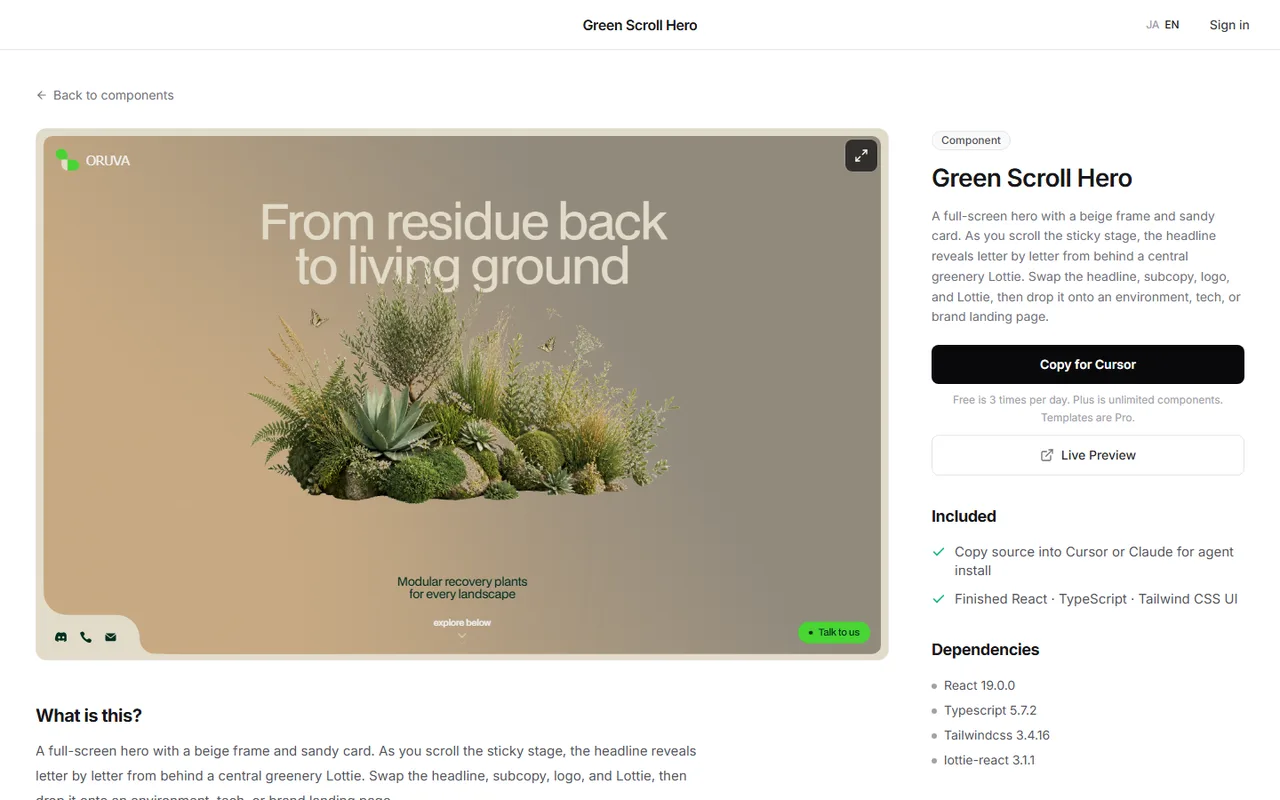
A headline that emerges from behind a plant animation as you scroll needs playback control and scroll math working together. Building it yourself takes a lot of fine-tuning.
Another route is to try a finished section in the browser first, then use it. The Green Scroll Hero in the DesignLayer catalog reveals its headline while pinned during scroll, and its central foliage runs on lottie-react.
On the detail page, Copy for Cursor copies the integration instructions, the live preview URL, the component TSX, and the npm dependencies in one go. Paste them into Cursor or Claude to bring it into your Next.js app.
Browsing and live previews are free, with no account or card. Free source copies are 3 per day (JST). https://design-layer.com/en/components
After that, swap the headline, logo, and animation JSON. It suits the top of environmental, tech, and brand landing pages.
Lottie animations in Next.js: common questions
Install lottie-react from npm. Put the JSON in public and pass its path to the Lottie component's src.
The file that renders it needs "use client", the browser-side marker.
Summary: how to use Lottie animations in Next.js
Lottie is an animation format: motion from tools like After Effects, saved as JSON
Install lottie-react, put the JSON in public, and pass its path to src
Defer loading with dynamic and ssr: false, and reserve the box size up front
Use lottieInView to play only while it is on screen
Hold a still frame under reduced motion, and mark decoration aria-hidden
Start by dropping one of your JSON files into the Step 1 code.
Scroll-driven motion in general is covered in https://design-layer.com/en/articles/nextjs-scroll-reveal-guide, and opening animations when a page loads in https://design-layer.com/en/articles/nextjs-loading-screen-guide.