Next.js Contact Form: 3 Fields, Inline Errors, Server Actions
Published: September 12, 2026 · 5 min read
Build a Next.js landing page contact form with three fields: labeled inputs, per-field errors, a Server Action with useActionState, and a two-column layout.
How many fields should a landing page contact form have?
You have finished a Next.js landing page, and now it is time to add the contact form. Company, phone, department, budget: the list of things you want to ask keeps growing.
A landing page contact form only needs three fields, though: name, email, and message.
One column is enough, or two columns with a short explanation beside the form. Keep motion to a simple entrance when the section scrolls into view, so nothing gets in the way of typing.
This guide covers four things.
Why fewer fields means more forms actually get sent
A three-field form with real labels and per-field error messages
Handling the submission with Server Actions (server functions you call straight from a form)
A two-column layout and a pre-launch checklist
Why a contact form with fewer fields gets more replies
People abandon forms for two reasons: it looks like work, or they cannot tell what happens next. You can fix both on your side.
Too many required fields get the tab closed
Seven fields make visitors estimate the effort before they type a single character, and many leave.
You can ask for a phone number or company name later in the conversation. Add a field only when you truly need it.
A button that just says "Submit" hides what happens next
"Submit" does not tell anyone whether a sales call or a PDF is coming. Use a label that describes the result, such as "Book a demo" or "Send my question".
A line like "We reply within 2 business days" next to the button lowers the hesitation further.
One error message at the bottom makes people hunt
"There is a problem with your input" under the button forces people to recheck every field. Show each error directly below the field it belongs to, in words that explain how to fix it.
One-column contact form: the full code
Lock in the look and the copy first, before you wire up delivery. The next section connects the submission.
The client component below (a component that runs in the browser) holds a heading, a one-line explanation, three fields, and a button.
Give every input a real label.
A placeholder alone disappears the moment someone starts typing, and screen readers handle it poorly.
// app/contact/ContactForm.tsx
  "use client";

  import { useActionState } from "react";
  import { sendContact, type ContactState } from "./actions";

  const initialState: ContactState = { ok: false, errors: {}, values: {} };

  const inputClass =
    "mt-2 w-full rounded-lg border border-zinc-300 bg-white px-4 py-3 text-base outline-none focus:border-zinc-900 aria-[invalid=true]:border-red-500";

  export function ContactForm() {
    const [state, formAction, pending] = useActionState(sendContact, initialState);

    if (state.ok) {
      return (
        <p role="status" className="rounded-xl bg-zinc-100 p-6 text-sm">
          Thanks. We will reply by email within 2 business days.
        </p>
      );
    }

    return (
      <form action={formAction} noValidate className="space-y-5">
        <div>
          <label htmlFor="name" className="text-sm font-medium">Name</label>
          <input
            id="name"
            name="name"
            autoComplete="name"
            defaultValue={state.values.name}
            aria-invalid={Boolean(state.errors.name)}
            aria-describedby={state.errors.name ? "name-error" : undefined}
            className={inputClass}
          />
          {state.errors.name && (
            <p id="name-error" className="mt-1 text-xs text-red-600">{state.errors.name}</p>
          )}
        </div>

        <div>
          <label htmlFor="email" className="text-sm font-medium">Email</label>
          <input
            id="email"
            name="email"
            type="email"
            autoComplete="email"
            defaultValue={state.values.email}
            aria-invalid={Boolean(state.errors.email)}
            aria-describedby={state.errors.email ? "email-error" : undefined}
            className={inputClass}
          />
          {state.errors.email && (
            <p id="email-error" className="mt-1 text-xs text-red-600">{state.errors.email}</p>
          )}
        </div>

        <div>
          <label htmlFor="message" className="text-sm font-medium">Message</label>
          <textarea
            id="message"
            name="message"
            rows={5}
            defaultValue={state.values.message}
            aria-invalid={Boolean(state.errors.message)}
            aria-describedby={state.errors.message ? "message-error" : undefined}
            className={inputClass}
          />
          {state.errors.message && (
            <p id="message-error" className="mt-1 text-xs text-red-600">{state.errors.message}</p>
          )}
        </div>

        <button
          type="submit"
          disabled={pending}
          className="w-full rounded-full bg-zinc-900 px-6 py-3 text-sm font-medium text-white transition hover:bg-zinc-700 disabled:opacity-60"
        >
          {pending ? "Sending…" : "Send my question"}
        </button>
        <p className="text-center text-xs text-zinc-500">We reply by email within 2 business days.</p>
      </form>
    );
  }
Wrapping the form in a contact section
A bare form on a page does not say what it is for. Wrap it with a heading and a one-line explanation, and cap the width around max-w-xl.
Very wide inputs make the eye travel more and feel harder to fill in.
// app/contact/page.tsx
  import { ContactForm } from "./ContactForm";

  export default function ContactPage() {
    return (
      <section id="contact" className="mx-auto max-w-xl px-6 py-24">
        <h2 className="text-3xl font-semibold tracking-tight">Talk to us</h2>
        <p className="mt-3 text-sm text-zinc-600">
          Three fields. No sales calls.
        </p>
        <div className="mt-10">
          <ContactForm />
        </div>
      </section>
    );
  }
Handle the contact form with Server Actions
In the App Router, you can pass a function marked "use server" to a form's action and handle the input on the server without writing an API route.
The useActionState hook used above (it receives the result of each submit) is a React 19 feature, available in the Next.js 15+ App Router.
The code below validates the three fields and returns per-field errors plus the submitted values when something is wrong. Add your email service or database call where the comment sits.
// app/contact/actions.ts
  "use server";

  export type ContactState = {
    ok: boolean;
    errors: { name?: string; email?: string; message?: string };
    values: { name?: string; email?: string; message?: string };
  };

  export async function sendContact(
    _prev: ContactState,
    formData: FormData,
  ): Promise<ContactState> {
    const name = String(formData.get("name") ?? "").trim();
    const email = String(formData.get("email") ?? "").trim();
    const message = String(formData.get("message") ?? "").trim();
    const values = { name, email, message };

    const errors: ContactState["errors"] = {};
    if (!name) errors.name = "Please enter your name.";
    if (!/^[^\s@]+@[^\s@]+\.[^\s@]+$/.test(email)) {
      errors.email = "Please check the email address format.";
    }
    if (message.length < 10) errors.message = "Please write at least 10 characters.";

    if (Object.keys(errors).length > 0) {
      return { ok: false, errors, values };
    }

    // Send the email or save the message here
    return { ok: true, errors: {}, values: {} };
  }
Fixing contact form inputs that clear after an error
In React 19, a form whose action is a function resets its fields after submission. That is why a long message vanishes when validation fails.
Return the submitted values, as the code above does, and pass them to defaultValue so the text stays.
Next.js 14 or an existing form endpoint
Where useActionState is not available, useFormState from react-dom plays a similar role, but it does not return a pending flag, so read it with useFormStatus in the button.
If you already have an API route or a hosted form service, there is no need to switch. A fetch call from the submit handler (onSubmit) is enough.
Two-column contact form that answers doubts first
For B2B demo bookings or quote requests, a two-column layout works well: what happens after sending goes on the left, the form on the right.
Three short lines covering time required, next steps, and privacy remove most of the hesitation.
On mobile, stack the explanation above the form. A Tailwind grid that switches to two columns at lg handles both.
<section className="mx-auto grid max-w-5xl gap-12 px-6 py-24 lg:grid-cols-2">
    <div>
      <h2 className="text-3xl font-semibold tracking-tight">Book a 30-minute demo</h2>
      <ul className="mt-6 space-y-3 text-sm text-zinc-600">
        <li>30 minutes over screen share, using the real product.</li>
        <li>After you send this, we email you a few time slots.</li>
        <li>We only use your details to get back to you.</li>
      </ul>
    </div>
    <ContactForm />
  </section>
Contact form checklist before launch
A polished form still loses messages if any of these is missing. Test each one once before you ship.
Every field has a label, and clicking it focuses the input
Errors appear under the field and clear once fixed
type="email" brings up the email keyboard on phones
A confirmation appears after sending, and double submits are blocked
No destination address or secret key lives in client-side code
The form states how you will use the data, or links to your privacy policy
If spam picks up, add a hidden honeypot field or rate limiting later. Heavy protection on day one mostly gets in the way of real visitors.
Copy a finished contact section instead
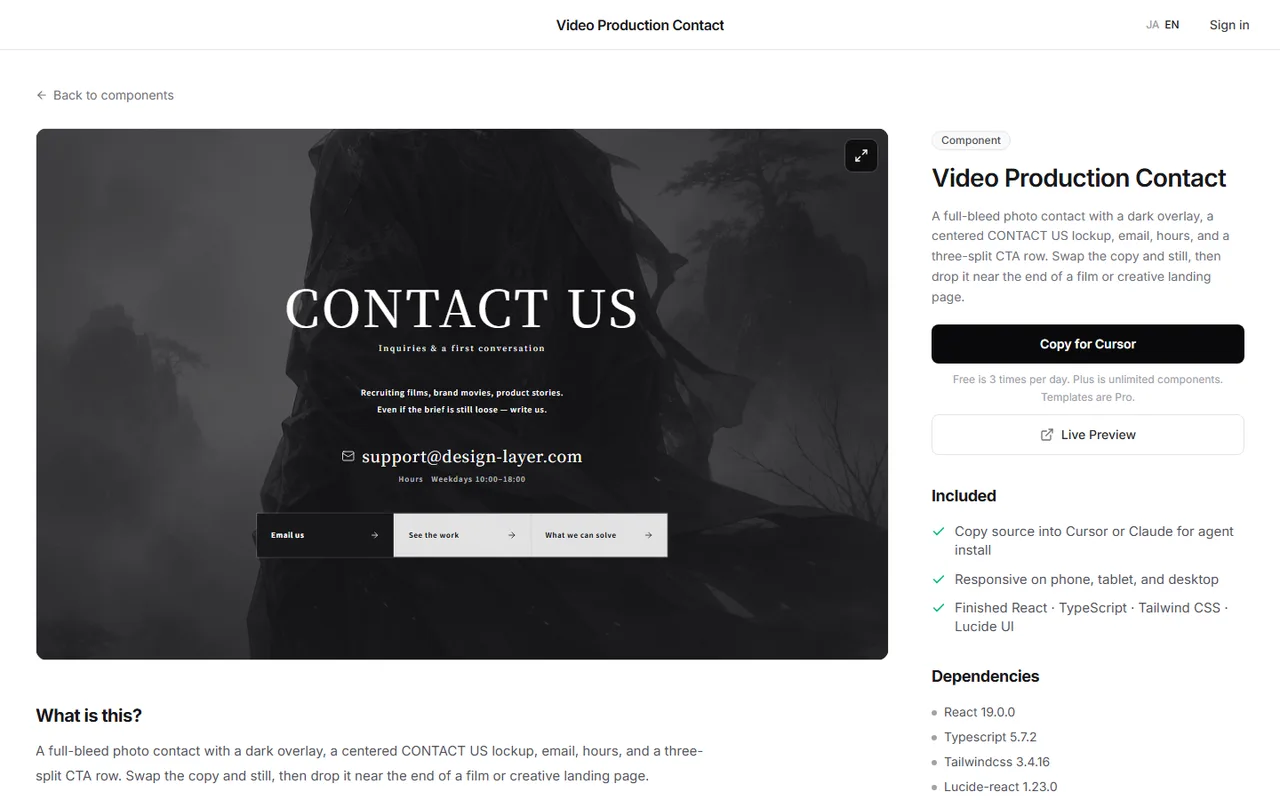
The code above gives you a working form. Getting the spacing, input heights, button hover, and the overlap with a background photo just right still takes time.
DesignLayer includes finished contact sections, such as a contact block laid over a full-bleed photo for creative studios.
Check the live preview in your browser and copy the code. https://design-layer.com/en/components
Then point the form's target and the field names at your own server function.
A free account copies the 10 Free Sample components with no monthly limit on a free account, plus 1 video prompt a month. Free cannot connect MCP. Full catalog copies are the 30-Day Build Pass ($19 once, no auto-renewal), Lifetime Access ($79 once, first 100 buyers), or Plus ($9/month), and live preview is unlimited. Replace the sample email address and copy before you publish.
Next.js contact form: common questions
No. Build the UI first and connect it to an existing API route or a hosted form service if you prefer. For a new build, Server Actions are the easy path because you skip writing a separate API route.
Summary: building a contact form in Next.js
Build a landing page contact form with three fields: name, email, message
Label every input and show errors under the field
Name the button after what happens next, like "Send my question"
Receive the input with a server function, and return the values on error
For business inquiries, use two columns and explain the next steps up front
The CTA that leads into the form is covered in https://design-layer.com/en/articles/nextjs-cta-section-guide and the footer below it in https://design-layer.com/en/articles/nextjs-footer-section-guide .
To start from a finished section, open the catalog and compare live previews. https://design-layer.com/en/components