Cursor MCP for UI Components: Search and Pull from a Catalog
Published: September 12, 2026 · 5 min read
Use Cursor MCP to search a React component catalog and pull source into your repo. DesignLayer MCP setup for Cursor, Claude Code, and npx, plus prompts.
Without Cursor MCP, the copy-paste loop breaks your flow
You are building a Next.js landing page in Cursor. Each time you need a hero or a pricing block, you switch to the browser: open a catalog, check the motion, copy, switch back, paste.
Do that a few times a day and your train of thought resets every time.
The work does not end at the paste, either. You still have to tell the agent where the file goes, which npm packages it needs, and which headings to swap — again, for every block.
This guide shows how to let Cursor pull from a component catalog over MCP, so the agent does the fetching. The second half walks through connecting DesignLayer MCP and gives prompts that work.
Why the copy-paste loop persists without Cursor MCP
The loop exists because the work lives in two places. You judge motion in the browser and write code in the editor. The agent cannot see the catalog, so a human has to carry things across.
The usual detours look like this:
Asking for “a cool hero” and getting the same SaaS look you have seen a hundred times
Pasting a screenshot of a demo and describing the animation in words
Pasting only the component code (TSX) and letting the agent guess placement and dependencies, which bloats the diff
All three come from the same gap: the agent does not have a finished block plus instructions for wiring it in. To stop carrying things by hand, the agent needs to search the catalog and fetch the integration details itself.
Cursor MCP lets the agent read the catalog directly
MCP (Model Context Protocol) is a standard way for AI agents to call external tools and data. Add an MCP server (the side that provides the tools) to Cursor or Claude Code and its tools become available from the chat.
Connect a component catalog over MCP and the split of work changes:
You: watch the live preview and decide which block to use
The agent: search the catalog and fetch the source plus integration notes
The agent: write the files, install dependencies, and swap the copy
The key is not to hand motion decisions to MCP. You cannot judge animation without seeing it run in a browser. Hand off only the carrying, and you cut the round trips without lowering the bar.
DesignLayer MCP: what it does and how to connect Cursor
DesignLayer is a catalog of human-built React + Tailwind sections with motion. You watch them run as live previews in the browser and copy the source. With DesignLayer MCP connected, you can ask Cursor or Claude Code to search that catalog and bring components into your project.
The agent mainly uses two tools:
search_catalog (the search tool): searches the public catalog and returns candidates with preview URLs
get_component (the fetch tool): fetches a component, then the agent creates the files and installs any packages it needs
What it pulls in is the same bundle as Copy for Cursor on the site: integration instructions, the live preview URL, the TSX, and npm dependencies. The agent no longer has to guess where things go.
Connecting is included with the 30-Day Pass, Lifetime, and Plus. Those plans include unlimited component copies, so you can pull over MCP without watching a quota.
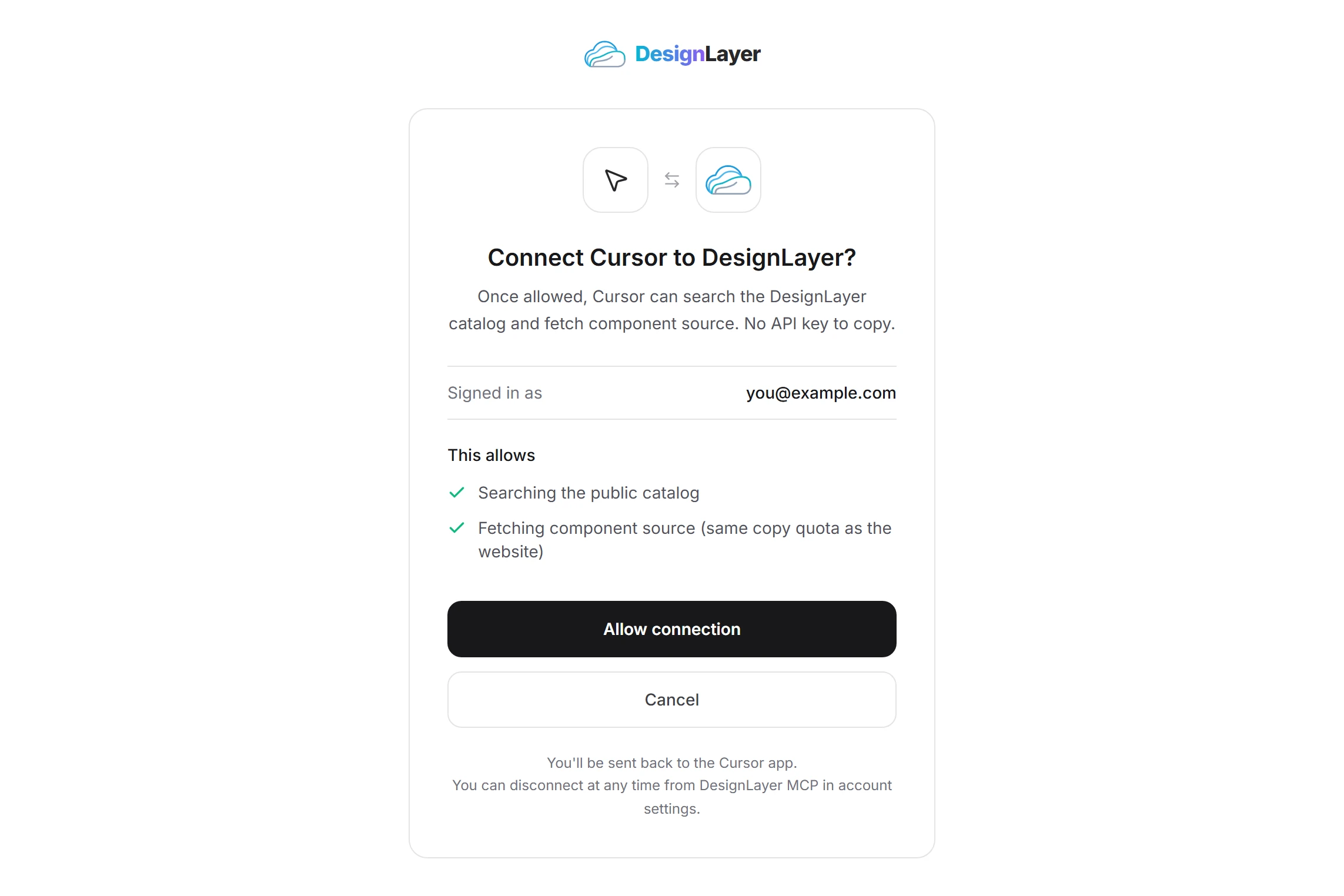
You connect by clicking Allow connection in the browser. There is no API key to create or paste into a config file.
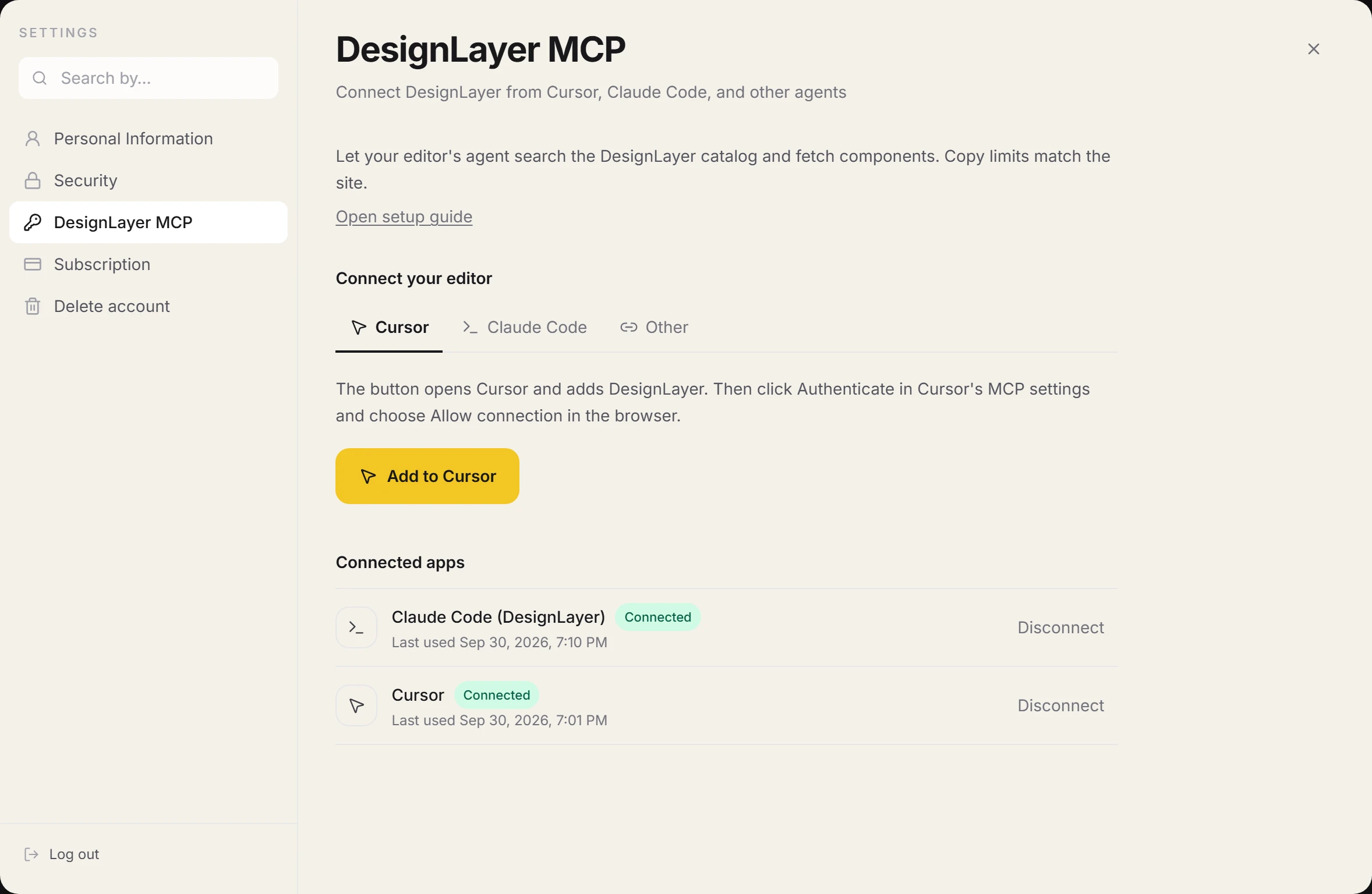
Connect DesignLayer MCP to Cursor
Sign in to DesignLayer and open Account settings → DesignLayer MCP
On the Cursor tab, click Add to Cursor, then approve adding DesignLayer in Cursor
When DesignLayer appears in Cursor’s MCP settings, click Authenticate
On the consent page in your browser, check the signed-in account and click Allow connection
Back in Cursor, DesignLayer shows as Connected. You are done
Connect DesignLayer MCP to Claude Code
Run this command in your terminal. You can also copy it from the Claude Code tab in account settings.
Then open /mcp in Claude Code, pick DesignLayer, and choose Authenticate. Click Allow connection on the consent page and you are set.
Using Claude Code and Cursor in the same project? Here is how to split the work between them: Claude Code in Cursor.
claude mcp add --transport http DesignLayer https://design-layer.com/mcp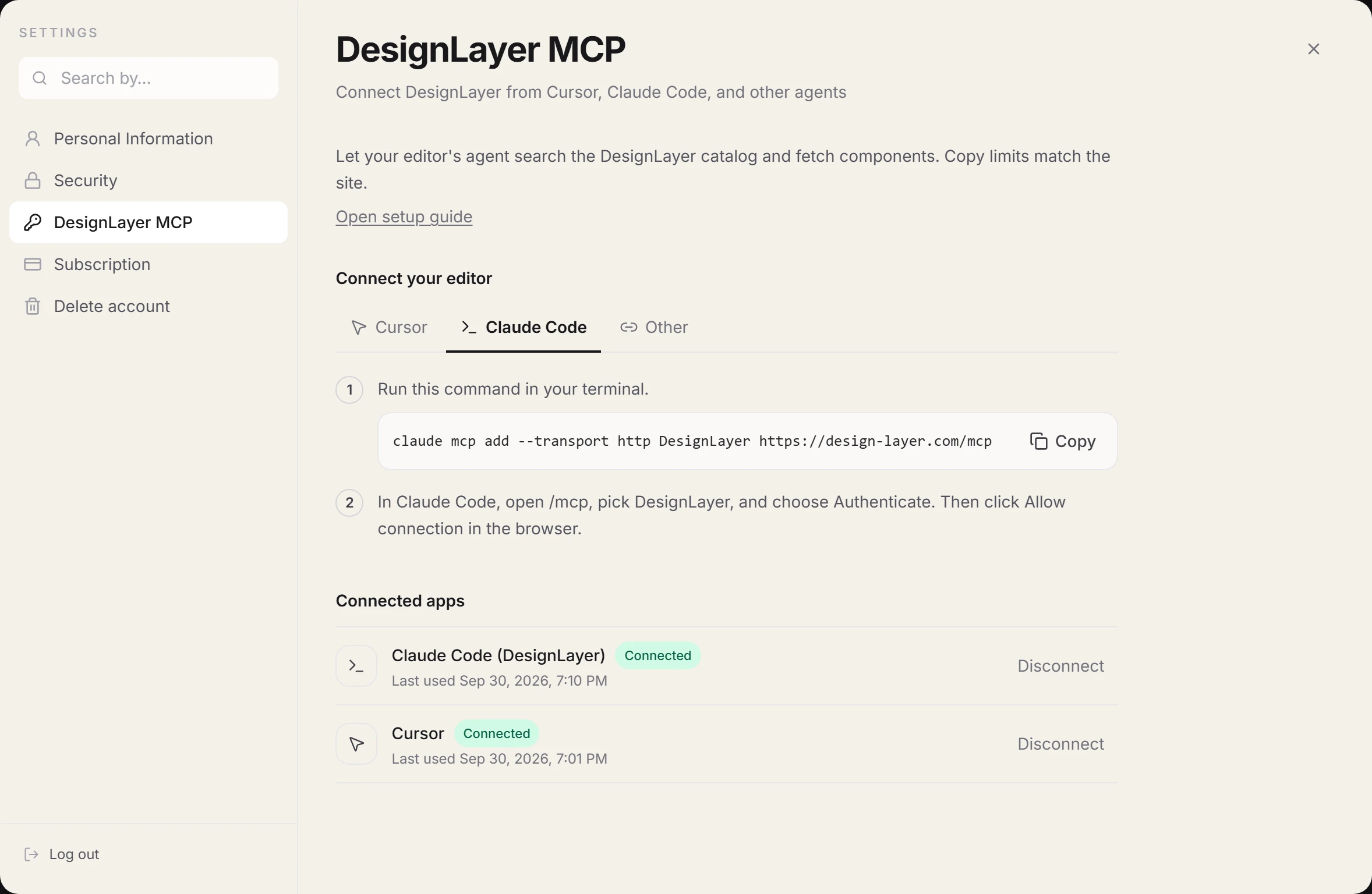
Other editors, or running MCP on your own machine
Other editors work too if they support connecting by approving in the browser (OAuth). Add https://design-layer.com/mcp as a server and connect the same way.
To run the MCP server on your own machine instead of over the web (stdio mode), add the following to your MCP config. The first time you pull a component, the browser opens to connect your account.
{
    "mcpServers": {
      "DesignLayer": {
        "command": "npx",
        "args": ["-y", "designlayer-mcp"]
      }
    }
  }
How to ask for components over Cursor MCP
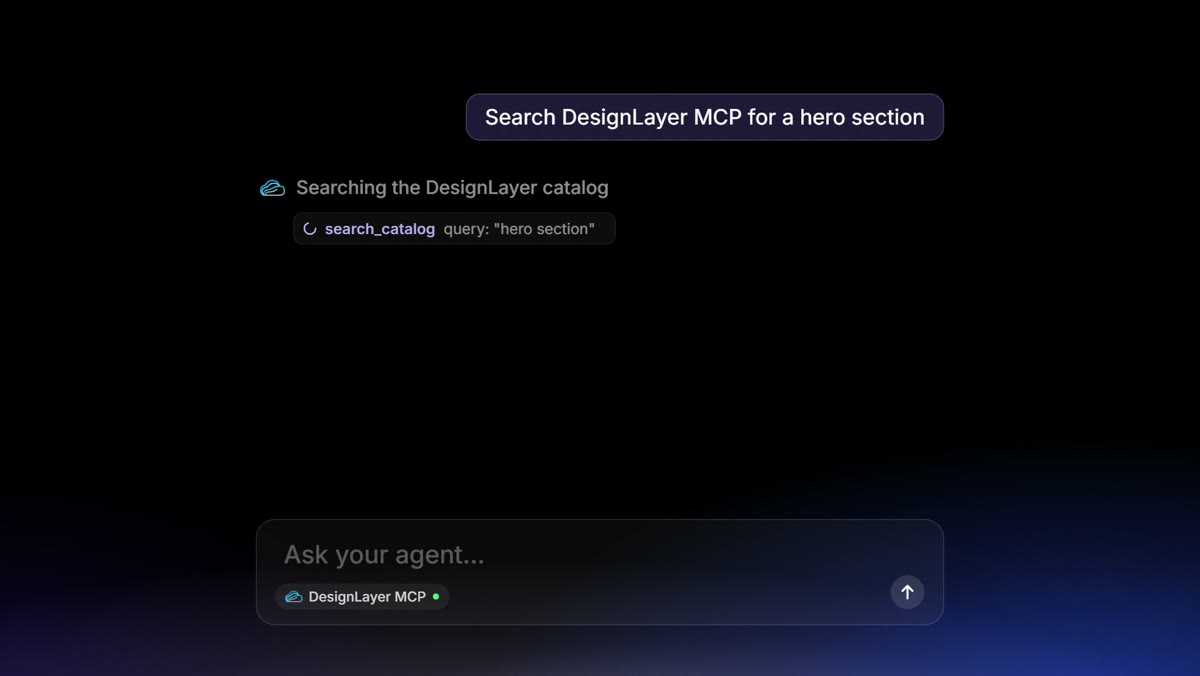
Once connected, start with a search. Looking at candidates before pulling one in saves rework compared with saying “add a hero” straight away.
1. Find a hero section on DesignLayer. Show candidates with preview URLs.

  2. (After you pick one from the preview)
  Add <component-id> to components/sections/
  and import it from app/(marketing)/page.tsx.
  Keep the Tailwind classes. Swap the heading, CTA, and links for our product.
  Do not turn the whole page into a Client Component.
Search over MCP first, then pull the component
Open the preview URLs from the search in the browser, confirm the motion, then ask the agent to pull it in. Pull without looking and you will often back it out with “that is not the motion I wanted.”
A component’s id is also in its page URL on the site, after /components/. If you already found one you like on the site, passing that id is the fastest route.
Add file placement and copy swaps in one line
The bundle includes integration instructions, but file locations and copy differ per project. Add three things — “put it in components/sections/”, “use our product name in the heading”, “match our existing colors and spacing (design tokens)” — and the diff stays easy to review.
Troubleshooting a Cursor MCP connection
The chat shows a connect button, or MCP settings say Needs authentication: click Authenticate to connect again
The consent page says MCP is included with the 30-Day Pass, Lifetime, and Plus: get one of those, then connect again
The consent page says the connection request can’t be used: start the connection again from your editor
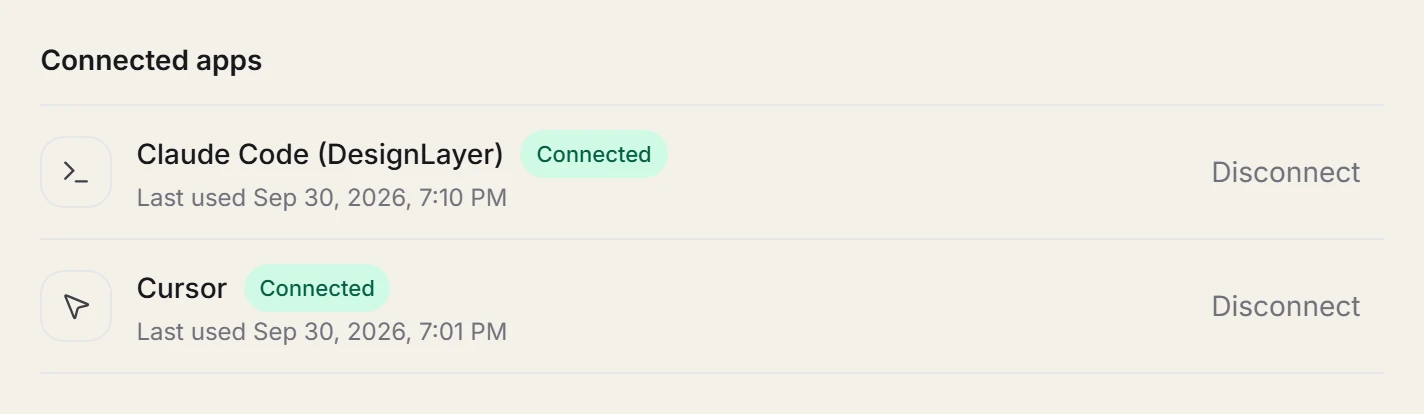
Connected editors are listed under Connected apps in account settings. Disconnect any editor you no longer use from there.
Who Cursor MCP is for, and who can wait
MCP is how a catalog becomes part of everyday coding. The more often you build sections in your editor, the more round trips it removes.
Good fit: you build landing or marketing pages several times a week, pull several sections on the same day, and want to stay in the editor
Can wait: you build about one page a month, or you want to judge the catalog’s quality first
If you can wait, Copy for Cursor on the site is enough. Browsing previews needs no account and no card, and A free account copies the 10 Free Sample components with no monthly limit. Full catalog copies and MCP are the 30-Day Build Pass ($19 once, no auto-renewal), Lifetime Access ($79 once, first 100 buyers), or Plus ($9/month). Add MCP once the manual flow feels routine.
The site-based flow is covered in https://design-layer.com/en/articles/cursor-react-motion-components-guide, and the prompt pattern for pasting is in https://design-layer.com/en/articles/claude-cursor-copy-paste-components.
Cursor MCP and component catalogs: common questions
MCP is included with the 30-Day Pass, Lifetime, and Plus. On the free plan you watch live previews on the site and paste with Copy for Cursor into Cursor or Claude.
Summary: pulling components into Cursor over MCP
The browser–editor loop exists because the agent cannot see the catalog
Over MCP, the agent handles search and fetch; you still judge motion in the live preview
DesignLayer MCP uses two tools, search and fetch, to pull the same bundle as Copy for Cursor
Connecting needs Plus, takes a browser approval, and no API key
The more often you build sections, the more it pays off. The free site copy is a fine place to start
Start by watching a few live previews in the catalog. Browsing needs no card. https://design-layer.com/en/components
Full connection steps are at https://design-layer.com/en/docs/cursor-mcp. New to DesignLayer? Read https://design-layer.com/en/articles/designlayer-cursor-beginner-guide first.