Next.js Framer Motion (motion/react): Entrance and Scroll Examples
Published: September 12, 2026 · 7 min read
Use Framer Motion (motion/react) in the Next.js App Router: where "use client" goes, staggered entrances, whileInView, useScroll parallax, and build errors.
TL;DR: Install motion and import it from "motion/react" in a component marked "use client". Keep the rest of the page as Server Components, and call the animated part from there.
Using Framer Motion in Next.js: the basic pattern
You added Motion (formerly Framer Motion) to a Next.js App Router project and got a createContext error. Putting "use client" at the top of page.tsx made it go away, but you are not sure that was the right fix. If that sounds familiar, this guide is for you.
The fix is simple. Keep the page itself as a Server Component (rendered on the server), move the parts you want to animate into their own files, and put "use client" (the marker that says "run this in the browser") only in those files. Use Motion where motion actually earns its place, such as the hero or the final CTA.
Here is what this guide covers.
The difference between framer-motion and motion (motion/react), and which to install
Where the browser marker goes and how the page calls the animated component
Staggered entrances for heading, body, and button
Animating once when a section scrolls into view
Moving only the background as the user scrolls
Common build errors and respecting reduced-motion settings
Why only Framer Motion parts should be client components
Motion components rely on browser-side React features such as state and context. That is why they do not work directly inside Server Components. Most developers know this part already.
The real problem starts when you silence the error by turning the whole page into a client component. Every child the page renders then ships to the browser as JavaScript. Data fetching and metadata also lose the advantages of running on the server.
If you split out only the animated parts, the client bundle stays small. Code review gets easier too, because the motion logic lives in one obvious file. And when you ask an AI agent to tweak the animation, fewer files means fewer surprises.
A plain fade-in can be done with a CSS animation. Motion pays off when you need scroll-linked movement, a one-time animation when an element enters the viewport, or several elements appearing in sequence.
framer-motion or motion/react: which package to install
Framer Motion is now developed under the name Motion, and the new package is called motion. In React you import from motion/react. The original framer-motion package still works, which is why search results show both styles.
For a new project, install motion and import from motion/react. If the code you copied imports from framer-motion, installing framer-motion works fine too. What matters is keeping your imports on one name. motion uses framer-motion internally, so installing a separate, different version of framer-motion can duplicate the library in your bundle and split shared settings such as MotionConfig.
# Starting fresh
npm install motion

# Existing code imports framer-motion
npm install framer-motion
Put "use client" only in the file that animates
Add this one line at the top of any file that renders animated elements like motion.h1. From the page you just import and render it like any other component.
"use client";

  import { motion } from "motion/react";

  export function HeroTitle({ children }: { children: React.ReactNode }) {
    return (
      <motion.h1
        initial={{ opacity: 0, y: 16 }}
        animate={{ opacity: 1, y: 0 }}
        transition={{ duration: 0.5, ease: [0.22, 1, 0.36, 1] }}
        className="text-4xl font-semibold tracking-tight md:text-6xl"
      >
        {children}
      </motion.h1>
    );
  }
Keep the page on the server and call the animated part
Do not add the browser marker to page.tsx. Keep data fetching and metadata there, and hand only the animated pieces to child components.
import { HeroTitle } from "@/components/HeroTitle";

  export default function Page() {
    return (
      <main className="mx-auto max-w-5xl px-6 py-24">
        <HeroTitle>A landing page that moves, built with Next.js</HeroTitle>
        <p className="mt-6 text-lg text-zinc-600">This paragraph is rendered on the server.</p>
      </main>
    );
  }
Staggered entrance animations with Framer Motion
If the heading, body, and button all appear at the same moment, the motion barely registers. Entrances that catch the eye come from small offsets between elements.
In Motion, give the parent variants (named "hidden" and "shown" states) and staggerChildren (how far apart the children start), and the children animate in order. A gap of 0.08 to 0.16 seconds works well. An ease-out style curve, which slows down at the end, keeps the page from feeling sluggish.
"use client";

  import { motion, type Variants } from "motion/react";

  const container: Variants = {
    hidden: {},
    show: { transition: { staggerChildren: 0.12, delayChildren: 0.1 } },
  };

  const item: Variants = {
    hidden: { opacity: 0, y: 16 },
    show: { opacity: 1, y: 0, transition: { duration: 0.5, ease: [0.22, 1, 0.36, 1] } },
  };

  export function HeroIntro() {
    return (
      <motion.div variants={container} initial="hidden" animate="show" className="space-y-6">
        <motion.h1 variants={item} className="text-5xl font-semibold">Headline</motion.h1>
        <motion.p variants={item} className="text-lg text-zinc-600">Supporting copy</motion.p>
        <motion.a variants={item} href="/signup" className="inline-block rounded-full bg-black px-6 py-3 text-white">
          Start for free
        </motion.a>
      </motion.div>
    );
  }
Keep images visible during entrance animations
Fading a large hero image in from opacity 0 delays the biggest element on the page. That hurts LCP (Largest Contentful Paint, the time until the main content shows up). Keep the image visible and animate only the text, or start the image at around 0.6 opacity instead of 0.
Framer Motion: animate once when a section enters view
Sections further down the page should animate when the user scrolls to them, not on page load. With whileInView (the "animate when visible" prop), the animation starts as soon as the element becomes visible.
Setting viewport once to true means the animation plays a single time. After the first run it stops watching the element, so the animation never replays when the reader scrolls back. The amount option controls how much of the element must be visible before it triggers.
"use client";

  import { motion } from "motion/react";

  export function FadeInSection({ children }: { children: React.ReactNode }) {
    return (
      <motion.section
        initial={{ opacity: 0, y: 24 }}
        whileInView={{ opacity: 1, y: 0 }}
        viewport={{ once: true, amount: 0.3 }}
        transition={{ duration: 0.6, ease: "easeOut" }}
      >
        {children}
      </motion.section>
    );
  }
Framer Motion: move the background as you scroll
For scroll-linked motion, combine useScroll and useTransform. The first reads scroll progress: pass an element ref as target and it gives you a 0 to 1 value as that element passes through the viewport. The second converts that value into a movement.
Animate the background only, and keep the movement to a few percent. When the text follows the scroll too, it becomes hard to read. Make the background slightly taller than its container so no gap appears at the edges.
"use client";

  import { useRef } from "react";
  import { motion, useScroll, useTransform } from "motion/react";

  export function ParallaxHero() {
    const ref = useRef<HTMLElement>(null);
    const { scrollYProgress } = useScroll({
      target: ref,
      offset: ["start start", "end start"],
    });
    const y = useTransform(scrollYProgress, [0, 1], ["0%", "15%"]);

    return (
      <section ref={ref} className="relative h-[80vh] overflow-hidden">
        <motion.div
          style={{ y, backgroundImage: "url(/hero.jpg)" }}
          className="absolute inset-x-0 -top-[10%] h-[120%] bg-cover bg-center"
        />
        <div className="relative z-10 flex h-full items-center justify-center">
          <h1 className="text-5xl font-semibold text-white">The headline stays still</h1>
        </div>
      </section>
    );
  }
Make Framer Motion respect reduced-motion settings
Some users turn on "Reduce motion" in their OS settings. In CSS this is the prefers-reduced-motion media query. In Motion, wrapping your tree in MotionConfig with reducedMotion="user" disables transform animations for those users while keeping opacity changes.
One provider near your layout covers every animated element inside it. Also double-check that no information depends on the animation to be understood.
"use client";

  import { MotionConfig } from "motion/react";

  export function MotionProvider({ children }: { children: React.ReactNode }) {
    return <MotionConfig reducedMotion="user">{children}</MotionConfig>;
  }
Framer Motion mistakes and build errors in Next.js
The places where Next.js and Motion trip people up are predictable. When you see an error, check these four first.
"createContext only works in Client Components" and similar errors
The file that uses motion is missing "use client". Add the directive to the file that imports the animation library, not to the page. The exact message depends on the version, but the cause is the same.
"Module not found: Can't resolve 'framer-motion'"
The package is not installed, or the import does not match the package you installed. It usually happens when framer-motion was never installed, or when a strict package manager such as pnpm only exposes direct dependencies while the code still imports from framer-motion. Change the import to motion/react or install framer-motion.
Turning the whole page into a browser-side component
The error disappears, but the entire page becomes client-side code. You also cannot export metadata from a client component. Go back to splitting out only the animated parts.
Giving every section the same strong motion
When everything moves, nothing stands out. Save strong motion for the hero and the final CTA, and use a subtle fade everywhere else.
Copying a finished Framer Motion section
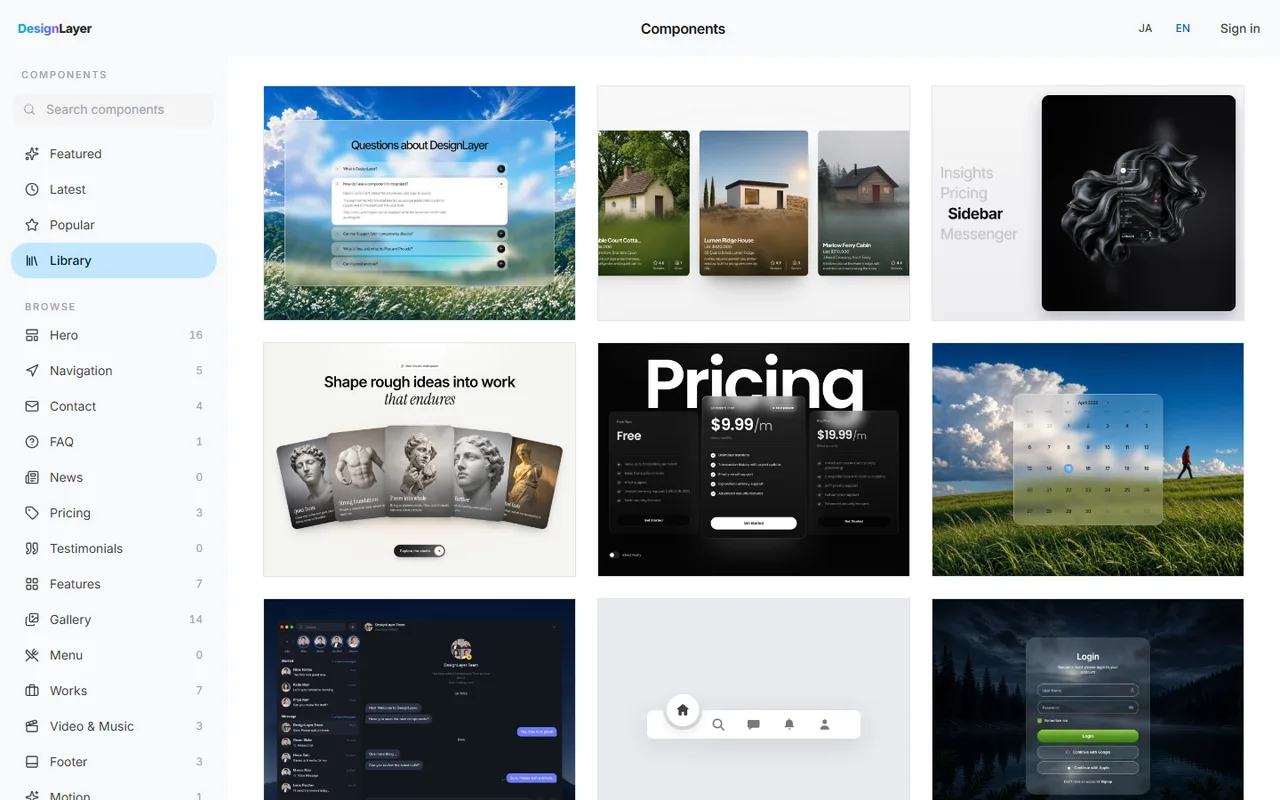
If you want full control over easing and delays, building on the code in this guide is the most reliable route. Sometimes, though, you want to settle the look of the page first, or add a section to an existing shadcn/ui page. In those cases, dropping in a section whose motion is already tuned is faster.
DesignLayer is a catalog of human-built React + Tailwind sections with motion, each with a live preview in the browser. Browsing is free and needs no card. https://design-layer.com/en/components
Copy for Cursor copies instructions an AI agent can follow, the live preview URL, the TSX, and the list of npm dependencies in one go. The free quota is the 10 Free Sample components with no monthly limit on a free account, plus 1 video prompt a month. Free cannot connect MCP. The rest of the catalog is the 30-Day Build Pass ($19 once, no auto-renewal), Lifetime Access ($79 once, first 100 buyers), or Plus ($9/month). See https://design-layer.com/en/articles/cursor-react-motion-components-guide for how it fits into Cursor.
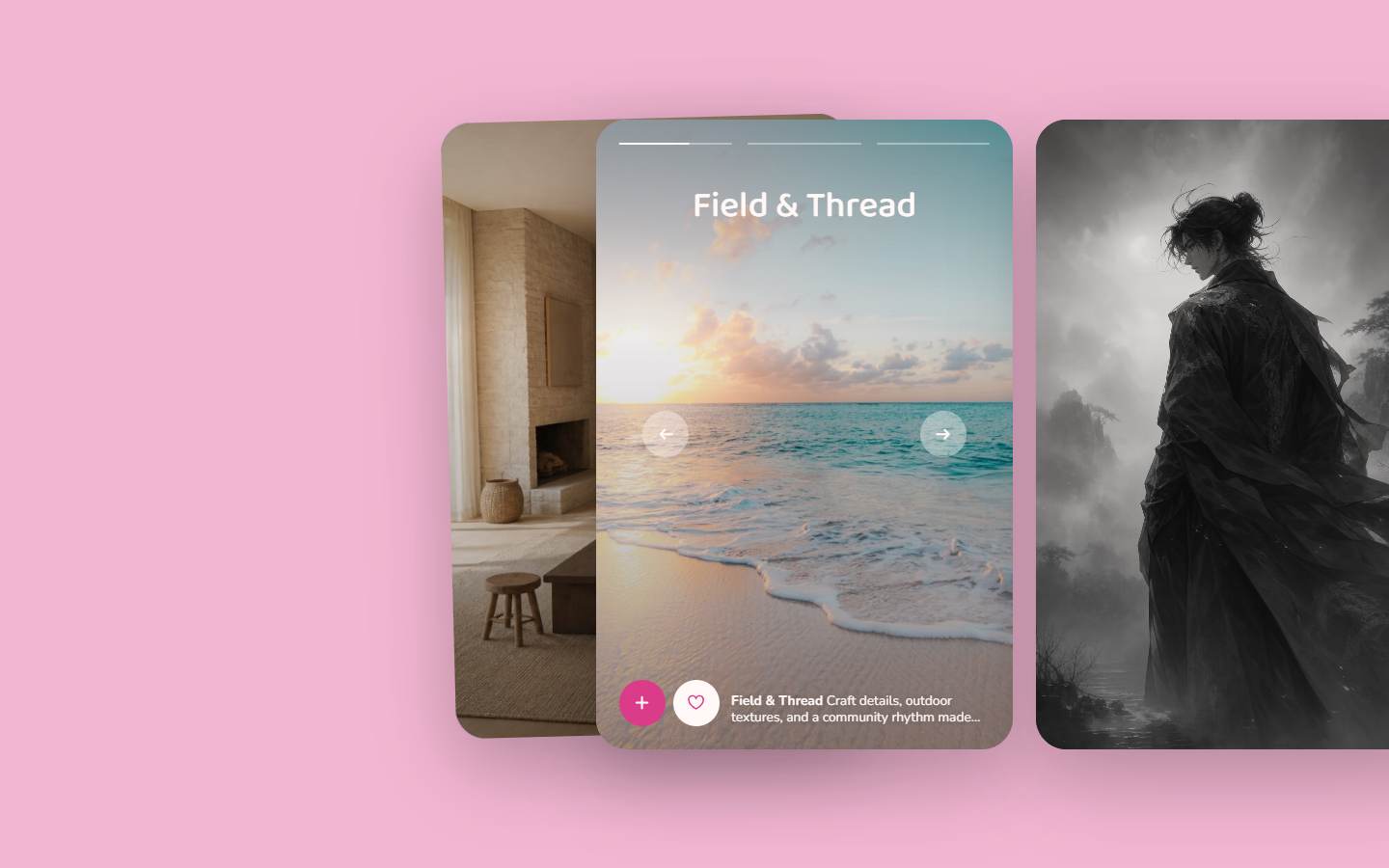
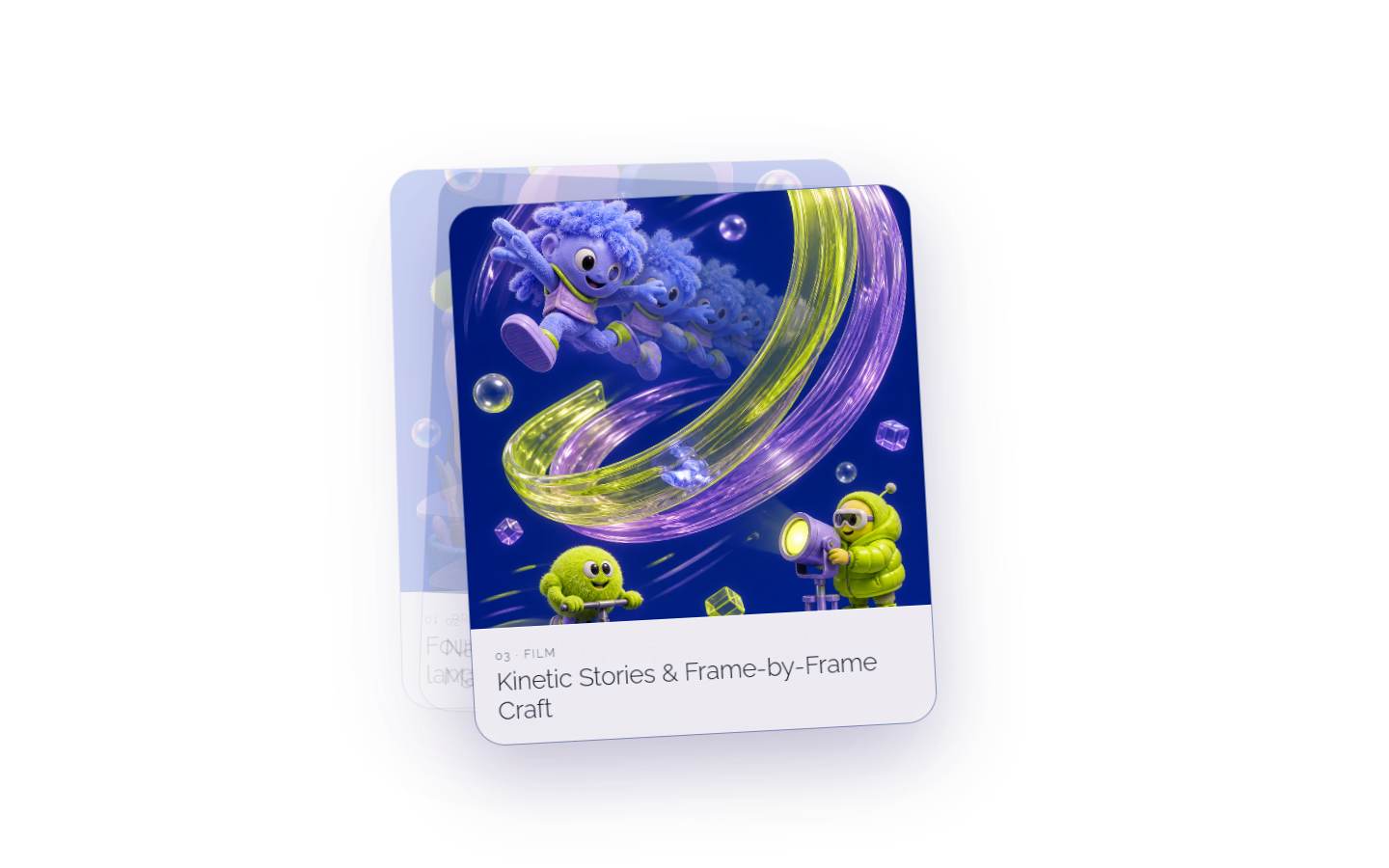
Home Projects Stack fades project cards up when they enter view, then stacks and shifts them as you scroll
Portfolio Types Deck slides each card in from the side, tied to scroll progress
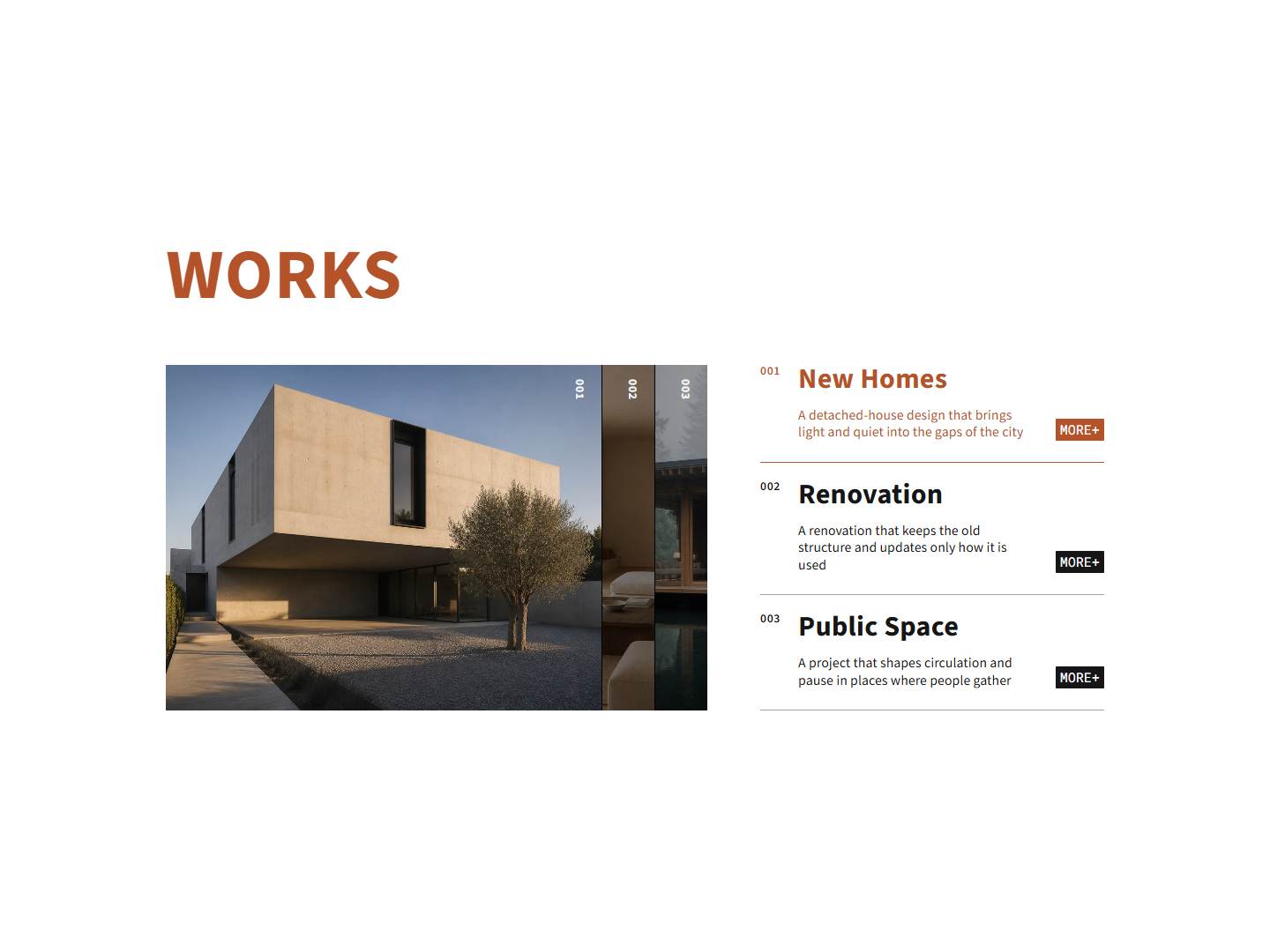
Works Expand slides the image strip in from the left once the section enters view, then widens the active image
A free account copies the 10 Free Sample components with no monthly limit and cannot connect MCP. The 30-Day Build Pass ($19 once), Lifetime Access ($79 once), and Plus ($9/month) include the rest of the catalog and MCP.
Next.js Framer Motion: common questions
Questions that come up often when adding Motion to Next.js.
They are the old and new package names of the same library. For a new project, install motion and import from motion/react.
Existing code that uses framer-motion keeps working. Just keep your imports on one name, and do not install a separate, different version of framer-motion.
Summary: using Framer Motion in Next.js
Keep the page on the server and add "use client" only to the animated files
For new projects, install motion and keep your imports consistent
Stagger entrances for heading, body, and button by 0.08 to 0.16 seconds
Animate mid-page sections once, when they scroll into view
Move only the background, by a few percent, for scroll-linked effects
Stop movement for users who chose "Reduce motion"
Start by splitting out one hero headline and giving it a staggered entrance. For building the whole hero, see https://design-layer.com/en/articles/nextjs-animated-hero-section-guide and for motion with Tailwind CSS alone, see https://design-layer.com/en/articles/nextjs-tailwind-animation-guide