Next.js Comparison Table: Highlight Your Column, Cards on Mobile
Published: September 12, 2026 · 5 min read
Build a comparison table for a Next.js landing page with Tailwind: accessible markup, one highlighted column, text instead of icon-only checks, mobile cards.
How to make a landing page comparison table persuade
You are building a Next.js landing page and want to show, at a glance, why your product beats an agency or another tool. That is the job of a comparison table.
The answer comes down to three rules:
Highlight your own column with a background color
Keep it to six to eight rows
Switch to cards on phones
A comparison table is not a pricing table. A pricing table compares your own plans; a comparison table puts your product next to agencies, in-house builds, or other tools.
Pricing tables are covered in https://design-layer.com/en/articles/nextjs-pricing-table-guide .
Why comparison tables lose trust
Table markup that screen readers understand
Highlighting your column, and "yes / no" that does not rely on icons alone
Switching to cards on mobile instead of forcing horizontal scroll
Three reasons comparison tables lose trust
Readers know a comparison table on your own site favors you. That is exactly why anything that looks unfair makes them distrust the whole table.
The comparison table describes alternatives unfairly
A list of nothing but competitor weaknesses makes readers doubt it. Write only publicly verifiable facts about other tools.
Leaving one row where you lose actually makes the rest more believable.
Too many rows bury the differences
A 20-row table makes readers search for what matters. Keep the six to eight rows that drive the decision and move detailed specs to another page.
The comparison table needs horizontal scrolling on phones
A four-column table squeezed onto a phone hides your column behind a horizontal scroll, and most people skip it. On narrow screens, switch to one card per option.
Comparison table markup with a real table element
A comparison table should be a real table, not just look like one.
A caption describes the table
Column header cells are marked as column headers
Row header cells are marked as row headers
That marker is the scope attribute: scope="col" for columns and scope="row" for rows.
With these, screen readers can announce which row and column a cell belongs to.
Keep the data in an array so the desktop table and the mobile cards share it.
The values below are examples; replace them with facts about your product before you publish.
// components/comparison-data.ts
  export const columns = ["Our product", "Agency", "In-house"] as const;

  export const rows: { label: string; values: (boolean | string)[] }[] = [
    { label: "Time to launch", values: ["1 day", "2–4 weeks", "1–2 months"] },
    { label: "Edits after launch", values: [true, false, true] },
    { label: "Design quality", values: [true, true, false] },
    { label: "Knowledge stays in-house", values: [true, false, true] },
    { label: "Upfront cost", values: ["Free", "Quote", "Salaries"] },
    { label: "Full custom control", values: [false, true, true] },
  ];
Highlighting your column in the desktop comparison table
Give only your column a background color and leave the rest white. Do not render true and false as symbols alone; add "Yes" and "No" text for screen readers.
Meaning carried only by color or icons is lost for color-blind readers and screen reader users.
// components/ComparisonTable.tsx
  import { columns, rows } from "./comparison-data";

  function Cell({ value }: { value: boolean | string }) {
    if (typeof value === "string") return <span>{value}</span>;
    return value ? (
      <span>
        <span aria-hidden="true">✓</span>
        <span className="sr-only">Yes</span>
      </span>
    ) : (
      <span className="text-zinc-400">
        <span aria-hidden="true">—</span>
        <span className="sr-only">No</span>
      </span>
    );
  }

  export function ComparisonTable() {
    return (
      <table className="hidden w-full text-left text-sm md:table">
        <caption className="sr-only">Our product vs. agency vs. in-house</caption>
        <thead>
          <tr>
            <th scope="col" className="w-1/4 py-4" />
            {columns.map((col, i) => (
              <th
                key={col}
                scope="col"
                className={i === 0 ? "rounded-t-2xl bg-zinc-900 px-4 py-4 text-white" : "px-4 py-4"}
              >
                {col}
              </th>
            ))}
          </tr>
        </thead>
        <tbody>
          {rows.map((row) => (
            <tr key={row.label} className="border-t border-zinc-200">
              <th scope="row" className="py-4 font-medium">{row.label}</th>
              {row.values.map((v, i) => (
                <td
                  key={columns[i]}
                  className={i === 0 ? "bg-zinc-900 px-4 py-4 text-white" : "px-4 py-4"}
                >
                  <Cell value={v} />
                </td>
              ))}
            </tr>
          ))}
        </tbody>
      </table>
    );
  }
Note the date and assumptions under the comparison table
Comparison values go stale. Add a small note right under the table, such as "Based on public information as of October 2026" or "Agency assumes a typical web studio".
Stating the assumptions makes readers far more willing to accept the table as fair.
Put that note in a p outside the table, not in the caption. Keep the caption to a short description of what is being compared.
Switch the comparison table to cards on mobile
Below md, hide the table and show one card per option. Inside each card, list row labels and values in a dl (description list).
The desktop table is hidden on small screens (hidden md:table).
The cards get the opposite setting (md:hidden), so the two swap places.
Whichever side is display: none is also hidden from screen readers, so nothing gets read twice.
// components/ComparisonCards.tsx
  import { columns, rows } from "./comparison-data";

  export function ComparisonCards() {
    return (
      <div className="space-y-4 md:hidden">
        {columns.map((col, i) => (
          <div
            key={col}
            className={i === 0 ? "rounded-2xl bg-zinc-900 p-5 text-white" : "rounded-2xl border border-zinc-200 p-5"}
          >
            <h3 className="font-semibold">{col}</h3>
            <dl className="mt-4 space-y-2 text-sm">
              {rows.map((row) => {
                const v = row.values[i];
                return (
                  <div key={row.label} className="flex justify-between gap-4">
                    <dt className="opacity-70">{row.label}</dt>
                    <dd>{typeof v === "string" ? v : v ? "Yes" : "No"}</dd>
                  </div>
                );
              })}
            </dl>
          </div>
        ))}
      </div>
    );
  }
When comparison table cards get too long
With more than eight rows, show only the three or four key rows in each mobile card and put the rest behind a "See all" toggle. Show everything and readers leave before reaching the third card.
Does a comparison table need animation?
A comparison table is a place for careful reading. Columns sliding in one by one mostly delay the moment people can start reading.
If you add anything, fade the whole section in once as it enters the viewport. To make your column stand out, background color and position (the leftmost column) do the job better than motion.
Copy a finished comparison table or pricing section
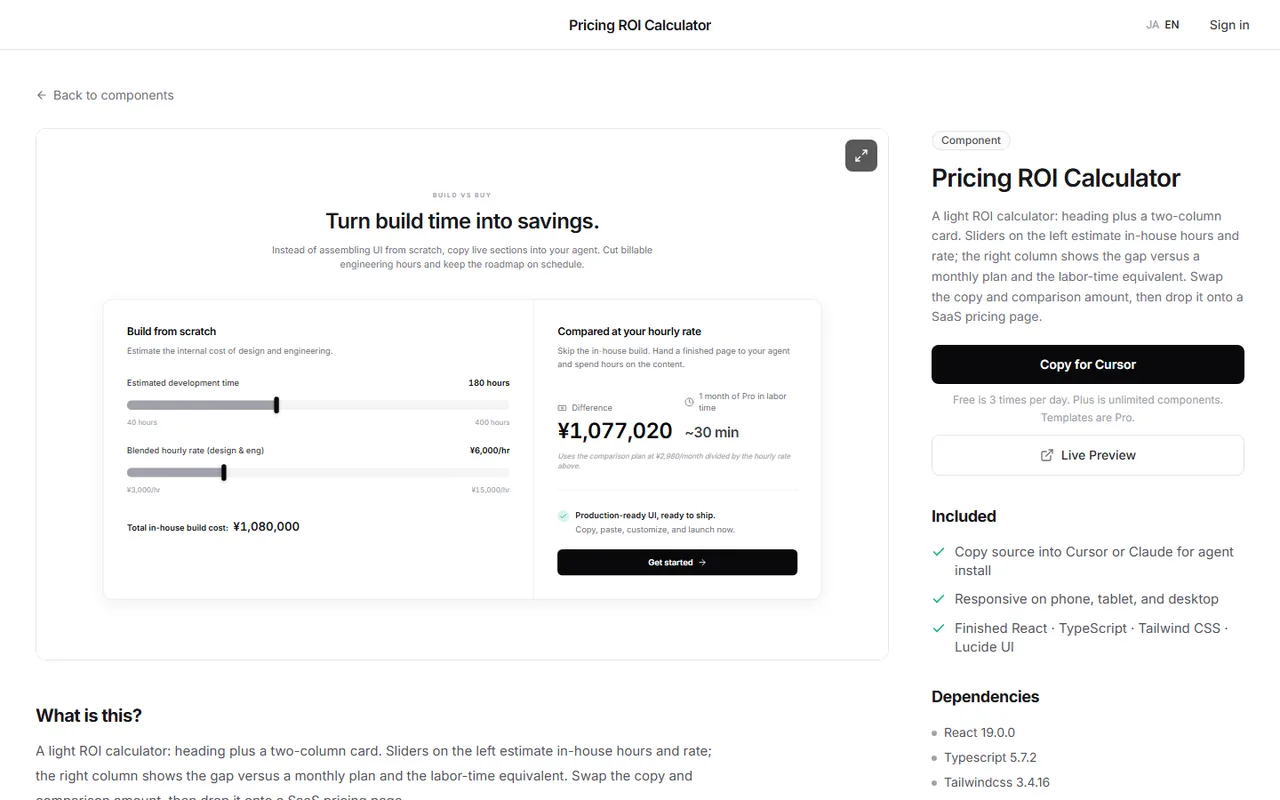
The code above gives you a table that reads correctly. Polishing the highlighted column's corners, the rhythm of the checks, and the note placement still takes a lot of small adjustments.
DesignLayer lets you live-preview human-built pricing and comparison sections in the browser and copy the ones you like. https://design-layer.com/en/components
Then swap in your row text and column names.
A free account copies the 10 Free Sample components with no monthly limit on a free account, plus 1 video prompt a month. Free cannot connect MCP. Full catalog copies are the 30-Day Build Pass ($19 once, no auto-renewal), Lifetime Access ($79 once, first 100 buyers), or Plus ($9/month), and live preview is unlimited.
An FAQ right after the table picks up questions the table could not answer; see https://design-layer.com/en/articles/nextjs-faq-accordion-guide .
Next.js comparison table: common questions
Only with publicly available facts and the date you checked them. In Japan, the Consumer Affairs Agency expects comparative ads to be objectively substantiated, quoted accurately, and compared fairly. If in doubt, compare categories such as "agency", "in-house", or "typical tools" instead of brand names. Use claims like "No. 1" only when you can show who was surveyed and how.
Summary: building a comparison table in Next.js
A comparison table pits you against agencies, in-house builds, or other tools; keep it separate from the pricing table
Highlight only your column and keep six to eight rows
Give the table a caption and header markers, and pair symbols with readable text
Render mobile cards from the same data instead of forcing horizontal scroll
Describe alternatives with public facts only
Features sections are covered in https://design-layer.com/en/articles/nextjs-features-section-guide and pricing tables in https://design-layer.com/en/articles/nextjs-pricing-table-guide .
To start from a finished section, compare options in the catalog. https://design-layer.com/en/components