Next.js Scroll Gallery: Sticky, Scroll-Linked, Mobile-Ready
Published: September 8, 2026 · 10 min read
Build a Next.js scroll gallery where photos and captions change on scroll: position: sticky, Intersection Observer, and Motion useScroll, with mobile fixes.
Build a Next.js scroll gallery by pinning and swapping photos
You put your portfolio or case studies into a Next.js page, and the three-column card grid looks like a folder listing.
What you want instead is a gallery where one work fills the screen and the next one takes over as you scroll. This guide shows how to build exactly that.
The answer is simpler than it looks. Pin the photo frame with position: sticky (a layout that stays put while the page scrolls), then change which work is shown based on scroll position. You do not need a carousel library or GSAP to start.
Here is what this guide covers.
Pinning a photo to the screen, and why it sometimes refuses to stick
A scroll-linked gallery that swaps works when a marker enters the screen
Turning vertical scroll into horizontal movement with Motion (formerly Framer Motion)
Mobile layout, image weight, and reduced-motion support
Why a scroll gallery beats a grid: 3 reasons
A card grid is great when you need to show many items at once. It falls short when you only have a few pieces and want each one read properly. Three reasons.
First, a scroll gallery creates an order. In a grid everything is the same size, so nobody can tell which piece is the flagship. Showing one large image at a time puts the reader's eye on the work.
Second, the photo and its story stay together. In a grid the caption is a small line under a thumbnail. In a scroll gallery the title and year change together with the photo, so each step reads as a project rather than a file.
Third, it keeps the vertical flow. A slider with arrows asks the reader to operate something in the middle of a landing page. Switching on scroll feels like part of the page instead.
It is the wrong tool for 20+ items or anything that needs tag filters. In that case, put your best 4 to 6 works in the scroll gallery and send the rest to a grid or a separate page.
Scroll gallery preview and three ways to build it
The target: when the section enters, the photo pins to the screen. As you keep scrolling, it crossfades to the next work. The title and year follow slightly behind the photo, and a small "2 / 5" counter shows where you are.
There are three approaches, from least to most effort.
Step 1: Pin the photo with CSS only (no JavaScript)
Step 2: Swap the current work when a marker enters the screen (needs browser-side code)
Step 3: Move a horizontal strip with Motion as you scroll (needs the motion package)
If unsure, start with Step 1. A pinned photo alone already reads very differently from a grid. Move to Step 2 when you want the photo itself to change, and to Step 3 when you want the horizontal drift.
Step 1: Pin scroll gallery photos with CSS only
This works as a Server Component. Put a pinned photo on the left and a column of project descriptions on the right. As the reader moves through the text, the photo stays on screen, so it is always clear which work they are looking at.
import Image from "next/image";

  const works = [
    { title: "House in Seto", year: "2024", src: "/works/1.jpg", text: "A single-story house on a hill in Seto." },
    { title: "Atelier Light", year: "2025", src: "/works/2.jpg", text: "A studio built around north light." },
    { title: "Small Library", year: "2025", src: "/works/3.jpg", text: "Renovating a small reading room by the station." },
  ];

  export function StickyWorks() {
    return (
      <section className="mx-auto grid max-w-6xl gap-10 px-6 py-24 lg:grid-cols-2">
        <div className="relative aspect-[4/5] lg:sticky lg:top-24 lg:self-start">
          <Image
            src={works[0].src}
            alt={works[0].title}
            fill
            sizes="(min-width: 1024px) 50vw, 100vw"
            className="object-cover"
          />
        </div>
        <div className="space-y-40 lg:py-24">
          {works.map((work) => (
            <article key={work.title}>
              <p className="text-sm text-zinc-500">{work.year}</p>
              <h3 className="mt-2 text-3xl font-semibold">{work.title}</h3>
              <p className="mt-4 text-zinc-600">{work.text}</p>
            </article>
          ))}
        </div>
      </section>
    );
  }
The text column creates the pin distance for the gallery
A sticky element only sticks within its parent. If the parent is as tall as the photo, the pin distance is zero.
Instead of making the photo taller, stack one description per work so the parent grows. A larger space-y value means more scrolling per work.
Four reasons sticky does not stick
When sticky "does nothing", it is almost always one of these.
No top value (top-24 in Tailwind, for example)
An ancestor has overflow: hidden or overflow: auto
It is a grid or flex child stretched to the parent's full height (add self-start)
The parent is the same height as the sticky element, so there is no room to move
The second one is the hardest to spot. An overflow-x-hidden on a page wrapper div, or on both html and body, silently kills every sticky element below it. If you need to hide horizontal overflow, overflow-x: clip does it without breaking sticky.
Pinning with GSAP instead of sticky? See GSAP pin-spacer explained for the problems that are specific to it.
What the Step 1 scroll gallery does not do yet
In Step 1 the photo stays on the first work. The text moves on, the image does not.
It still gives a readable flow. If you want the photo to change too, go to Step 2.
Step 2: Swap scroll gallery works with Intersection Observer
Pin a full-screen frame the same way as Step 1, then place one invisible "marker" per work below it. When a marker crosses the middle of the viewport, store its index in state (a value the component remembers) and switch the display. Intersection Observer, the browser API that reports when an element enters the screen, does the detecting.
In Next.js only this gallery file needs "use client" (the marker for code that runs in the browser). The page itself can stay a Server Component.
"use client";

  import Image from "next/image";
  import { useEffect, useRef, useState } from "react";

  type Work = { title: string; year: string; src: string };

  export function ScrollWorks({ works }: { works: Work[] }) {
    const [index, setIndex] = useState(0);
    const marks = useRef<(HTMLDivElement | null)[]>([]);

    useEffect(() => {
      const io = new IntersectionObserver(
        (entries) => {
          entries.forEach((entry) => {
            if (!entry.isIntersecting) return;
            const i = Number(entry.target.getAttribute("data-i"));
            if (!Number.isNaN(i)) setIndex(i);
          });
        },
        // Only react when a marker crosses the vertical center
        { rootMargin: "-50% 0px -50% 0px" },
      );
      marks.current.forEach((el) => el && io.observe(el));
      return () => io.disconnect();
    }, []);

    return (
      <section className="relative">
        <div className="sticky top-0 h-[100svh] overflow-hidden bg-zinc-950" aria-hidden="true">
          {works.map((work, i) => (
            <Image
              key={work.src}
              src={work.src}
              alt=""
              fill
              sizes="100vw"
              priority={i === 0}
              className={
                "object-cover transition-opacity duration-700 " +
                (i === index ? "opacity-100" : "opacity-0")
              }
            />
          ))}
          {works.map((work, i) => (
            <div
              key={work.title}
              className={
                "absolute bottom-12 left-8 text-white transition duration-500 delay-150 " +
                (i === index ? "translate-y-0 opacity-100" : "translate-y-3 opacity-0")
              }
            >
              <p className="text-sm text-white/70">{work.year}</p>
              <p className="mt-1 text-3xl font-semibold">{work.title}</p>
            </div>
          ))}
          <p className="absolute bottom-12 right-8 text-sm tabular-nums text-white/70">
            {index + 1} / {works.length}
          </p>
        </div>
        {works.map((work, i) => (
          <div
            key={work.title}
            data-i={i}
            ref={(el) => {
              marks.current[i] = el;
            }}
            className="h-[80svh]"
          >
            <h3 className="sr-only">{work.title} ({work.year})</h3>
          </div>
        ))}
      </section>
    );
  }
Stack the images and fade, do not swap src
You could change only the src, but every switch triggers a fresh image load and a brief white flash. Stacking all images and toggling opacity, as above, gives a clean crossfade. The images load up front, so fast scrolling does not break the sequence.
Let the caption trail the photo
If the photo and title change in the same frame, the eye cannot tell what changed. A delay-150 on the caption makes it follow the photo, which gives the switch a clear order. A 0.1 to 0.2 second gap is enough.
Do not measure positions on every scroll event
Calling getBoundingClientRect for every work on each scroll event gets heavy and the index jitters. The observer lets the browser tell you when a marker crosses the center, so updates only happen at the moment of the switch.
Set scroll gallery distance per work by count
Marker height is the scroll distance per work. Around 80 to 100svh works for 4 items, around 60svh for 8.
Longer feels calmer but loses more readers mid-way. Aim to keep the whole gallery within 5 to 6 screens.
Step 3: Build a scroll gallery that moves sideways as you scroll down
Another common pattern lines the works up horizontally and slides them sideways as you scroll down. This is driven by scroll progress (0 to 1), not by an index, which is exactly what Motion's (formerly Framer Motion) useScroll (reads scroll progress) and useTransform (maps one value to another) are for.
The package is motion. Install it with npm install motion and import from motion/react. Older projects on framer-motion have the same API names.
"use client";

  import { motion, useScroll, useTransform } from "motion/react";
  import { useRef } from "react";

  export function HorizontalWorks({ srcs }: { srcs: string[] }) {
    const ref = useRef<HTMLElement>(null);
    const { scrollYProgress } = useScroll({
      target: ref,
      offset: ["start start", "end end"],
    });
    // Move left until the last image fills the screen
    const end = "-" + ((srcs.length - 1) / srcs.length) * 100 + "%";
    const x = useTransform(scrollYProgress, [0, 1], ["0%", end]);

    return (
      <section ref={ref} className="relative" style={{ height: srcs.length * 100 + "svh" }}>
        <div className="sticky top-0 h-[100svh] overflow-hidden">
          <motion.div
            className="flex h-full"
            style={{ x, width: srcs.length * 100 + "%" }}
          >
            {srcs.map((src) => (
              <div key={src} className="h-full flex-1 p-8">
                <img src={src} alt="" className="h-full w-full rounded-2xl object-cover" />
              </div>
            ))}
          </motion.div>
        </div>
      </section>
    );
  }
Section height becomes horizontal travel
The section is "count x 100svh" tall to create vertical scroll distance. Inside it, the photo frame stays on screen while the progress value (scrollYProgress) runs from 0 to 1 and the strip moves left. The offset ["start start", "end end"] means 0 when the section top meets the viewport top, and 1 when the section bottom meets the viewport bottom.
Reading scroll progress does not re-render
Values from these two hooks update styles without triggering React re-renders. That is why this is lighter than calling setState on every scroll. For Motion basics and the motion/react import, see https://design-layer.com/en/articles/nextjs-framer-motion-guide.
Scroll gallery mobile and performance checks
Scroll-linked galleries are often built on desktop and break on phones. Check these before shipping.
Use 100svh instead of 100vh so the height does not jump when the mobile address bar shows or hides
Be ready to drop sticky on small screens. With lg: prefixes, as in Step 1, phones get a plain vertical list
Set next/image sizes correctly and keep images around 1.5x their display size. Stacked heavy JPEGs make the switch lag
If you have a fixed header, offset the sticky top by the header height so titles are not hidden
Keep a visible way out. A gallery that takes over the screen for too long feels like a trap
Respect prefers-reduced-motion
For users who asked their OS to reduce motion, stop the crossfades and show a normal vertical list. In Tailwind, the motion-reduce: variant removes transitions. In Motion, the useReducedMotion hook reads the setting.
The rule: never put information only in the motion. With motion off, the works should still read in the same order.
Make the scroll gallery work with screen readers and keyboards
In the Step 2 code the visual frame has aria-hidden, and each marker holds an sr-only heading. Empty 100svh blocks alone would make screen readers skip every title. If works link to detail pages, put the links in the markers so keyboard users can tab through them in order.
Common scroll gallery mistakes and fixes
Making every work position: fixed. The scroll distance disappears and the page collapses. Use the pinned frame plus marker height
Too many items. A 15-image pin looks great in a demo but nobody finishes it on a landing page. Keep the best few and link to "All work"
Placing it right after the hero. If the pin starts while the hero entrance is still playing, both feel weaker. Add a short intro block between them
Missing an ancestor's overflow-x-hidden. When the photo will not stay pinned, walk up the tree and look for overflow first
Copy a finished scroll gallery instead
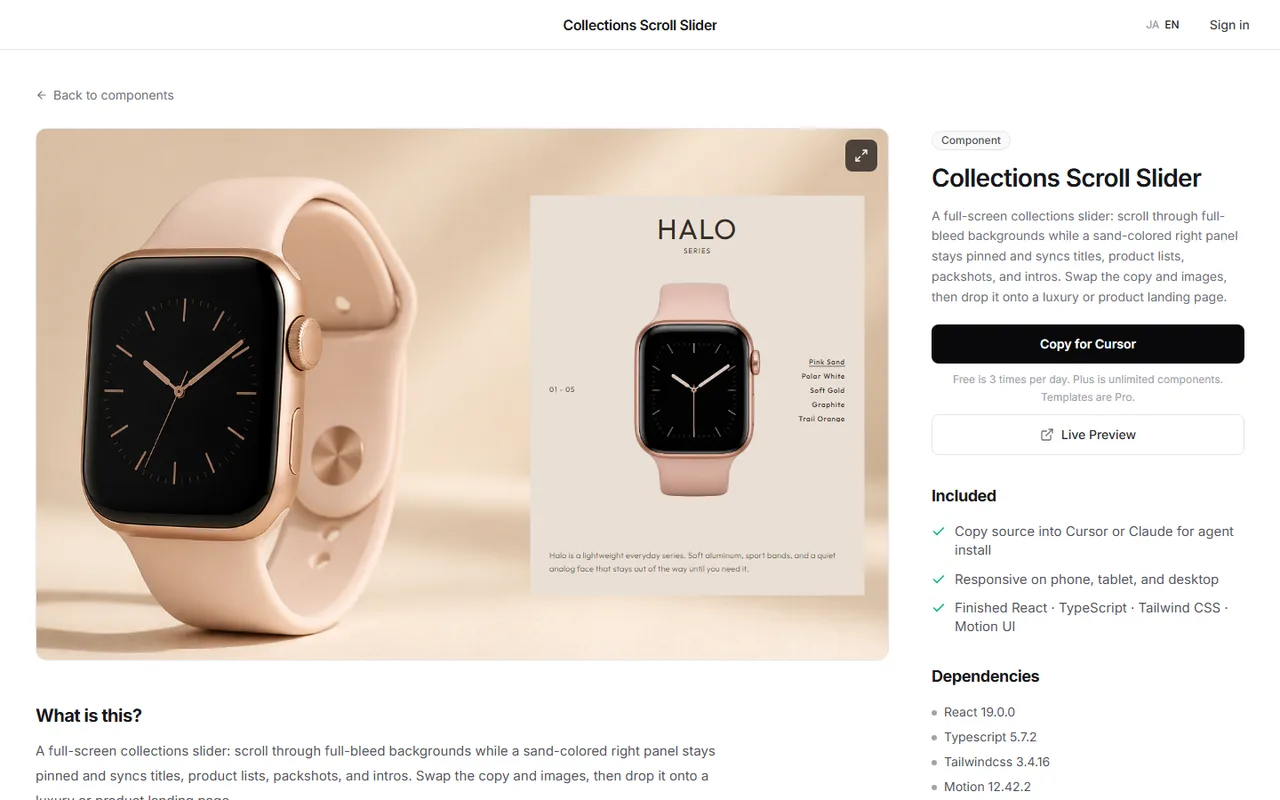
Photos flying from back to front, collection details synced with the background, thumbnails stacking from below. Effects like these can take half a day to tune on top of the Step 2 index logic.
In that case you can scroll through a finished gallery in the browser first, then bring its React + Tailwind code into your Next.js app.
In the DesignLayer catalog you can run each section in a live preview, then hand the code to your AI agent with Copy for Cursor. Browsing needs no account and no card, and free source copies are 3 per day (JST). https://design-layer.com/en/components
After that, the job is swapping photos, titles, and count. It suits portfolios with a few works where you want the presentation settled first. It does not suit lists that need search or filters, so build those as a normal grid.
Next.js scroll gallery: common questions
Pin the photo frame with position: sticky and switch the current index when each marker enters the screen. Stack the images and change opacity to avoid flicker.
Summary: building a scroll gallery in Next.js
A Next.js scroll gallery is a pinned photo frame plus swapping the current work by scroll position
When the photo will not stay pinned, check the top offset, ancestor overflow, and parent height
Stack images and fade between them, and let the caption trail slightly
Build horizontal drift with Motion's scroll-progress hooks
On mobile, check the screen-height unit, image sizes, and reduced motion
Start by running the Step 1 code with your own photos. For whole-page structure see https://design-layer.com/en/articles/nextjs-portfolio-motion-guide, and for reveal-on-scroll effects see https://design-layer.com/en/articles/nextjs-scroll-reveal-guide.