Next.js portfolio animation: motion that keeps your work first
Published: September 12, 2026 · 6 min read
Add motion to a Next.js portfolio without upstaging the work: featured grid, pinned scroll gallery, subtle case-study entrances, and video for motion designers.
Portfolio motion should guide how people view your work
You are building a portfolio in Next.js, and the work page looks like a plain thumbnail list. You want motion but are not sure what should move. Use motion to set the order in which people see your work, not to decorate the work itself.
When particle backgrounds or cursor followers grab attention first, the project images lose. What works in a portfolio is a gallery that switches projects as you scroll, plus restrained entrances on case-study pages.
What this guide covers:
Why project pages look weak
A featured project plus a static grid that tells visitors where to start
A pinned gallery that switches projects with scroll
Subtle entrance animation for case-study pages
How motion designers should embed video work
Three reasons portfolio project pages look weak
First, every thumbnail is the same size. When every project gets equal weight, visitors cannot tell which one you are proudest of. Making one project large gives the page an entry point.
Second, projects sit in an auto-advancing carousel. A potential client wants to stop on the one that caught their eye, and it moves on without them. Let the visitor's scroll or click switch projects.
Third, the intro animation outlasts the case study text. If a hiring manager or client waits seconds before reading the problem and your role, they leave. Keep motion short enough that it never delays reading.
Option 1: A portfolio with a featured project plus a grid
Put your strongest project large and line up the rest in a static grid. The only motion is a slight image zoom on hover. It stays a Server Component (rendered on the server), so no "use client" (the browser-only marker) is needed.
Load images with next/image and match sizes to the real display width. Adding priority to the featured image only speeds up first paint.
import Image from "next/image";
  import Link from "next/link";

  type Work = { slug: string; title: string; role: string; image: string; alt: string };

  export function WorkGrid({ works }: { works: Work[] }) {
    const [featured, ...rest] = works;

    return (
      <section className="mx-auto max-w-6xl px-6 py-24">
        <h2 className="text-3xl font-semibold">Selected work</h2>
        <div className="mt-10 grid gap-6 md:grid-cols-3">
          <Link href={"/works/" + featured.slug} className="group md:col-span-2 md:row-span-2">
            <div className="relative aspect-[4/3] overflow-hidden rounded-2xl bg-zinc-100">
              <Image
                src={featured.image}
                alt={featured.alt}
                fill
                priority
                sizes="(min-width: 768px) 66vw, 100vw"
                className="object-cover transition-transform duration-500 ease-out group-hover:scale-[1.03] motion-reduce:transition-none"
              />
            </div>
            <p className="mt-3 font-medium">{featured.title}</p>
            <p className="text-sm text-zinc-500">{featured.role}</p>
          </Link>
          {rest.map((work) => (
            <Link key={work.slug} href={"/works/" + work.slug} className="group">
              <div className="relative aspect-[4/3] overflow-hidden rounded-2xl bg-zinc-100">
                <Image
                  src={work.image}
                  alt={work.alt}
                  fill
                  sizes="(min-width: 768px) 33vw, 100vw"
                  className="object-cover transition-transform duration-500 ease-out group-hover:scale-[1.03] motion-reduce:transition-none"
                />
              </div>
              <p className="mt-3 font-medium">{work.title}</p>
              <p className="text-sm text-zinc-500">{work.role}</p>
            </Link>
          ))}
        </div>
      </section>
    );
  }
Zoom the project image on hover, not the whole card
Scaling the whole card makes it overlap its neighbors and can blur the text. Scaling only the image to about 1.03 inside an overflow-hidden frame feels calm. Layout ideas are in https://design-layer.com/en/articles/nextjs-bento-grid-guide and hover tuning in https://design-layer.com/en/articles/nextjs-hover-card-guide
Option 2: A pinned portfolio gallery that switches on scroll
Pin the section to the viewport and switch the current project as the visitor scrolls. Each project gets its moment, so even a short list feels substantial. Four to eight projects is a comfortable range.
Scroll progress is handled with two Motion (formerly Framer Motion) tools.
useScroll: reads how far the user has scrolled
useMotionValueEvent: turns that value into the index of the project to show
The outer section is "number of projects × viewport height" tall, and the inner block is sticky (it stays pinned while you scroll).
"use client";

  import { useRef, useState } from "react";
  import Image from "next/image";
  import { motion, useMotionValueEvent, useScroll } from "motion/react";

  const works = [
    { slug: "brand-site", title: "Brand website", image: "/works/brand.jpg", alt: "Home page of a brand website" },
    { slug: "app-ui", title: "Mobile app UI", image: "/works/app.jpg", alt: "Three mobile app screens" },
    { slug: "motion-reel", title: "Motion reel 2026", image: "/works/reel.jpg", alt: "A frame from a motion reel" },
    { slug: "ec-renewal", title: "E-commerce redesign", image: "/works/ec.jpg", alt: "Product listing page of an online store" },
  ];

  export function PinnedGallery() {
    const ref = useRef<HTMLElement>(null);
    const [active, setActive] = useState(0);
    const { scrollYProgress } = useScroll({ target: ref, offset: ["start start", "end end"] });

    useMotionValueEvent(scrollYProgress, "change", (value) => {
      setActive(Math.min(works.length - 1, Math.floor(value * works.length)));
    });

    return (
      <section ref={ref} className="relative" style={{ height: works.length * 100 + "vh" }}>
        <div className="sticky top-0 flex h-screen flex-col items-center justify-center px-6">
          <div className="relative aspect-[4/3] w-full max-w-4xl overflow-hidden rounded-2xl bg-zinc-100">
            {works.map((work, i) => (
              <motion.div
                key={work.slug}
                className="absolute inset-0"
                initial={false}
                animate={{ opacity: i === active ? 1 : 0 }}
                transition={{ duration: 0.4, ease: "easeOut" }}
              >
                <Image src={work.image} alt={work.alt} fill sizes="(min-width: 1024px) 896px, 100vw" className="object-cover" />
              </motion.div>
            ))}
          </div>
          <p className="mt-6 text-lg font-medium">{works[active].title}</p>
          <p className="text-sm text-zinc-500">
            {active + 1} / {works.length}
          </p>
        </div>
      </section>
    );
  }
When the gallery does not stay pinned
If any ancestor has overflow: hidden or overflow: auto, the gallery will not pin.
Check first that the element wrapping your layout does not have overflow-hidden.
On phones, viewport height changes as the address bar shows and hides. Using h-dvh in place of h-screen reduces jumps. The full gallery build, including mobile, is in https://design-layer.com/en/articles/nextjs-scroll-gallery-guide
Keep portfolio case studies to a subtle entrance
A project detail page is where people read the problem, your role, what you tried, and the result. A slight rise as paragraphs and images enter the viewport is enough.
Use Motion's whileInView (the prop that animates when an element enters the screen).
Set viewport once: true so it runs only once. For people who reduce motion, useReducedMotion shows content immediately.
"use client";

  import type { ReactNode } from "react";
  import { motion, useReducedMotion } from "motion/react";

  export function FadeIn({ children }: { children: ReactNode }) {
    const reduce = useReducedMotion();

    return (
      <motion.div
        initial={reduce ? false : { opacity: 0, y: 12 }}
        whileInView={{ opacity: 1, y: 0 }}
        viewport={{ once: true, margin: "-10% 0px" }}
        transition={{ duration: 0.5, ease: [0.22, 1, 0.36, 1] }}
      >
        {children}
      </motion.div>
    );
  }
Do not animate the case-study heading or first image
Leave the heading and main image visible on load with no entrance. Showing the work immediately lands better with clients and hiring managers. Wrap only the paragraphs and supporting images further down in FadeIn.
Adding video to a motion designer portfolio
For motion designers and video creators, the work already moves. Keep site motion even quieter. When the site's motion competes with the work, neither comes across.
When you show many videos, do not play them all at once. Play only the video in view and pause it when it leaves. With muted and playsInline, most phones will autoplay it. Power-saving modes can still block playback, so make sure the poster image alone shows the work. Set a still image as poster and keep preload at metadata so the page stays light.
"use client";

  import { useEffect, useRef } from "react";

  export function WorkVideo({ src, poster, label }: { src: string; poster: string; label: string }) {
    const ref = useRef<HTMLVideoElement>(null);

    useEffect(() => {
      const video = ref.current;
      if (!video) return;
      if (window.matchMedia("(prefers-reduced-motion: reduce)").matches) return;

      const observer = new IntersectionObserver(
        ([entry]) => {
          if (entry.isIntersecting) {
            video.play().catch(() => {});
          } else {
            video.pause();
          }
        },
        { threshold: 0.5 }
      );
      observer.observe(video);
      return () => observer.disconnect();
    }, []);

    return (
      <video
        ref={ref}
        src={src}
        poster={poster}
        muted
        loop
        playsInline
        preload="metadata"
        aria-label={label}
        className="aspect-video w-full rounded-2xl bg-zinc-900 object-cover"
      />
    );
  }
Split long video pieces into a short loop and the full cut
Show a 5 to 10 second loop in the list and the full piece on the case-study page with a play button. Long videos in a list drive up data use and slow pages on phones.
Common portfolio motion mistakes
Cursor followers or particles on every page, so effects outshine the work
An auto-advancing carousel that will not stop on the project someone wants
No sizes on images, so phones download oversized files
Empty alt text, or alt left as the file name
Client work published without confirming permission
The last two have nothing to do with motion, but check them before launch. In alt text, briefly say which project and which screen.
Using a finished portfolio gallery instead
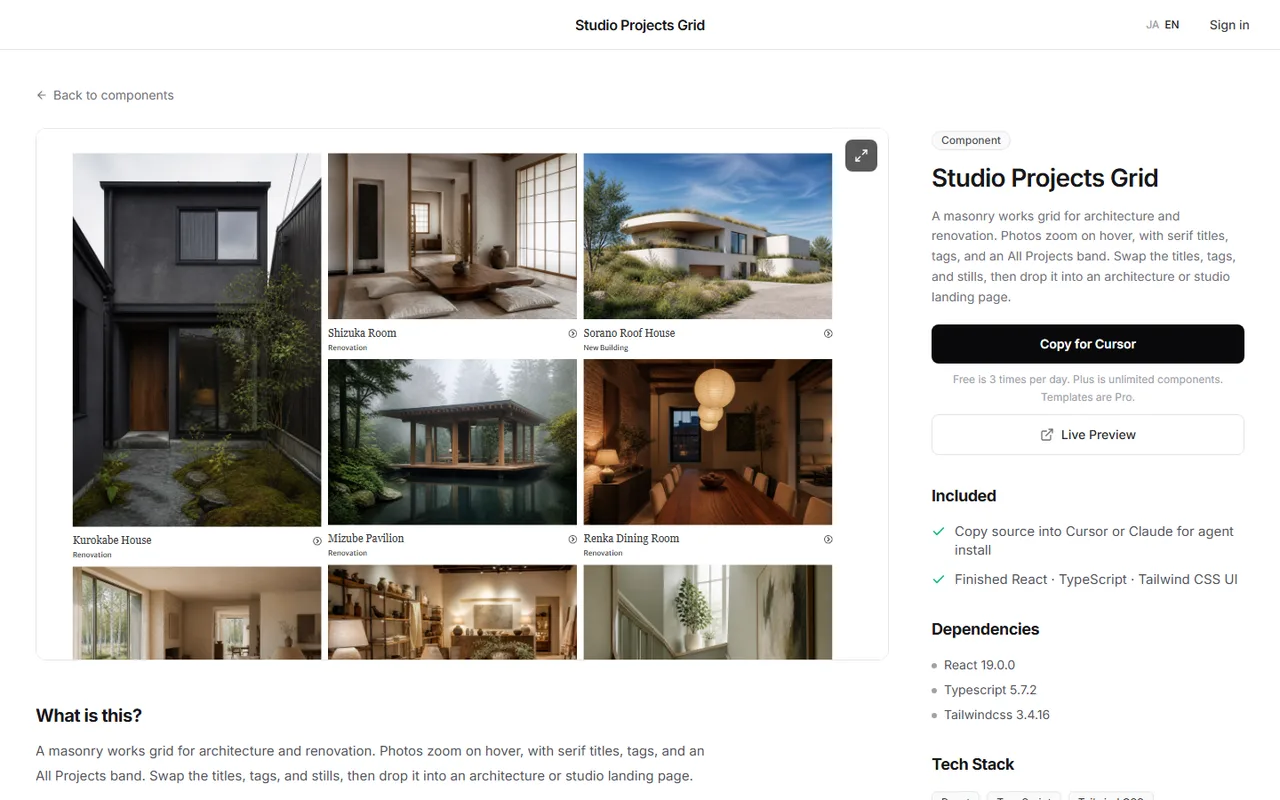
Tuning pin and switch timing yourself, including mobile checks, can take half a day. If you would rather spend that time on the work, start from a finished gallery.
DesignLayer is a catalog of human-built React + Tailwind CSS sections with motion that you preview live in the browser before copying. Scroll the gallery to check the motion, then swap in your own images and titles. Browsing needs no account and no card. https://design-layer.com/en/components
The free plan includes the 10 Free Sample components with no monthly limit on a free account, plus 1 video prompt a month. Free cannot connect MCP. The rest of the catalog is the 30-Day Build Pass ($19 once, no auto-renewal), Lifetime Access ($79 once, first 100 buyers), or Plus ($9/month). A Free Sample can be copied with no monthly limit. Other galleries need the 30-Day Build Pass ($19 once), Lifetime Access ($79 once), or Plus ($9/month).
Next.js portfolio motion: common questions
Not for a featured project plus grid; Tailwind CSS hover is enough. Use it for a scroll-switching gallery or viewport entrances. Setup is in https://design-layer.com/en/articles/nextjs-framer-motion-guide
Summary: adding motion to a Next.js portfolio
Use portfolio motion to set the order people see your work
Make your best project large and keep the rest in a static grid
With a short project list, a pinned scroll gallery adds weight
Keep case studies to subtle entrances and leave the first heading and image still
Play only the video in view, muted
Start by making your strongest project large on the work page. That alone tells visitors where to look first.