Next.js CTA Section: Buttons That Get Clicked, with Code
Published: September 12, 2026 · 6 min read
Build the final CTA section of a Next.js landing page: why buttons get ignored, primary vs secondary buttons, microcopy, whileInView, and mobile tap targets.
Fixing a CTA section button nobody clicks
You built a landing page in Next.js and put a "Start for free" button at the bottom. The hero button gets clicks, but the one at the end barely does. That is one of the most common problems with a CTA section (the block that asks visitors to sign up or buy).
The fix is clear. In the last section of the page, narrow it down to one button you want clicked, and change the background so the section stands apart from the rest of the page.
Then reveal the heading and button with a short, staggered entrance. Getting spacing and contrast right does more than adding flashy effects.
Here is what this guide covers.
Why the final CTA should not repeat the hero
Three reasons buttons get ignored
Base code for a CTA section with Next.js and Tailwind CSS
Revealing the heading and button in order as the section enters view
Button labels, microcopy, and tap targets on mobile
Why the final CTA should not repeat the hero
Someone who reaches the bottom of the page is in a different place than someone looking at the first screen. They have seen the features, checked the pricing, and skimmed the FAQ. Showing them the hero headline again tells them nothing new.
The last section should answer one question: now that you have read this far, what do you do next? Something like "Publish your first page in 3 minutes" pairs an action with a result they can get right away.
The other reason is reducing hesitation. When two buttons look equally important, people stop to decide between them. The fewer choices you offer, the shorter the path to a click.
Three reasons CTA buttons get ignored
When the final button is not getting clicks, the cause is usually one of these three. Check your page against them before writing any code.
Primary and secondary CTA buttons look the same
"Try it free" and "Read the docs" sit side by side in the same color and size. Fill the primary button and make the secondary one an outline or a text link so the difference is obvious.
Pricing or cancellation doubts are still open
If questions about price or contracts remain, a stronger final button will not help. Put an FAQ right before the final button to answer what people wonder just before clicking. See https://design-layer.com/en/articles/nextjs-faq-accordion-guide for building one.
Motion is so strong the copy cannot be read
When background particles or large rotations draw the eye, the heading and button text do not sink in. For the last section, having the heading and button appear in sequence is enough.
Base code for a Next.js CTA section
Start without motion and get the structure right. Give the section a different background from its neighbors, then stack a one-line heading, one line of support copy, the primary button, and a secondary link. Under the button, add a short line of microcopy that removes a worry.
This version uses no motion, so it works as a Server Component (rendered on the server). Use the Link component from next/link for navigation to sign-up or demo pages.
import Link from "next/link";

  export function FinalCta() {
    return (
      <section className="px-6 py-24">
        <div className="mx-auto max-w-4xl rounded-3xl bg-zinc-950 px-8 py-16 text-center text-white">
          <h2 className="text-3xl font-semibold tracking-tight md:text-4xl">
            Publish your first page in 3 minutes
          </h2>
          <p className="mx-auto mt-4 max-w-xl text-zinc-300">
            Pick a template and swap in your copy. You can configure the rest later.
          </p>
          <div className="mt-10 flex flex-col items-center justify-center gap-4 sm:flex-row">
            <Link
              href="/signup"
              className="inline-flex min-h-12 w-full items-center justify-center rounded-full bg-white px-8 font-medium text-zinc-950 transition hover:bg-zinc-200 focus-visible:outline focus-visible:outline-2 focus-visible:outline-offset-4 focus-visible:outline-white sm:w-auto"
            >
              Start for free
            </Link>
            <Link href="/demo" className="text-sm text-zinc-300 underline-offset-4 hover:underline">
              Watch the demo
            </Link>
          </div>
          <p className="mt-4 text-xs text-zinc-400">No credit card required. Cancel anytime.</p>
        </div>
      </section>
    );
  }
Full-bleed band or rounded card
A background that runs edge to edge feels bold. A rounded card inside the container makes the boundary with the footer easier to see. Either works, but if you go full-bleed, check that the side padding does not get too tight on phones.
Animating the CTA heading and button in order
Once the structure is settled, add the entrance. The last section is reached by scrolling, so animate it when it enters the viewport rather than on page load. Motion's (formerly Framer Motion) whileInView (the "animate when visible" prop) with a stagger brings in the heading, support copy, and button one after another.
Skip looping backgrounds and cursor-following effects. With once: true the animation plays a single time and does not get in the way of people scrolling back and forth. For setting up Motion, see https://design-layer.com/en/articles/nextjs-framer-motion-guide
"use client";

  import Link from "next/link";
  import { motion, stagger, type Variants } from "motion/react";

  const container: Variants = {
    hidden: {},
    show: { transition: { delayChildren: stagger(0.12) } },
  };

  const item: Variants = {
    hidden: { opacity: 0, y: 16 },
    show: { opacity: 1, y: 0, transition: { duration: 0.5, ease: "easeOut" } },
  };

  export function FinalCtaMotion() {
    return (
      <motion.div
        variants={container}
        initial="hidden"
        whileInView="show"
        viewport={{ once: true, amount: 0.4 }}
        className="mx-auto max-w-4xl rounded-3xl bg-zinc-950 px-8 py-16 text-center text-white"
      >
        <motion.h2 variants={item} className="text-3xl font-semibold md:text-4xl">
          Publish your first page in 3 minutes
        </motion.h2>
        <motion.p variants={item} className="mt-4 text-zinc-300">
          Pick a template and swap in your copy.
        </motion.p>
        <motion.div variants={item} className="mt-10">
          <Link href="/signup" className="inline-flex min-h-12 items-center rounded-full bg-white px-8 font-medium text-zinc-950">
            Start for free
          </Link>
        </motion.div>
      </motion.div>
    );
  }
Keep CTA button hover effects small
A big scale-up on hover makes the surrounding text look pushed aside. Stay around 1.03x, or just change the background color. Phones have no hover, so never put information that only appears on hover.
Writing CTA button labels and microcopy
A button label should tell people what happens when they click. "Start for free" or "Book a demo" is easier to picture than "Submit" or "Click here."
Microcopy is the short line right under the button. Its job is to remove one worry just before the click. Common examples:
Cost worries: "No credit card required", "Free for 14 days"
Effort worries: "Sign up in 1 minute", "Set it up later"
Commitment worries: "Cancel anytime"
Whatever you write here must match your actual terms. A line that is not true may raise clicks, but it costs you trust.
Making the CTA button easy to tap on mobile
On phones, a full-width button is easier to hit with a thumb. The code above uses w-full and switches back to w-auto from the sm breakpoint. A height of about 44 to 48px cuts down on mis-taps.
Shorten or drop the entrance delay on mobile. When people scroll fast, waiting for the button to appear is more annoying than helpful.
Copying a finished CTA section
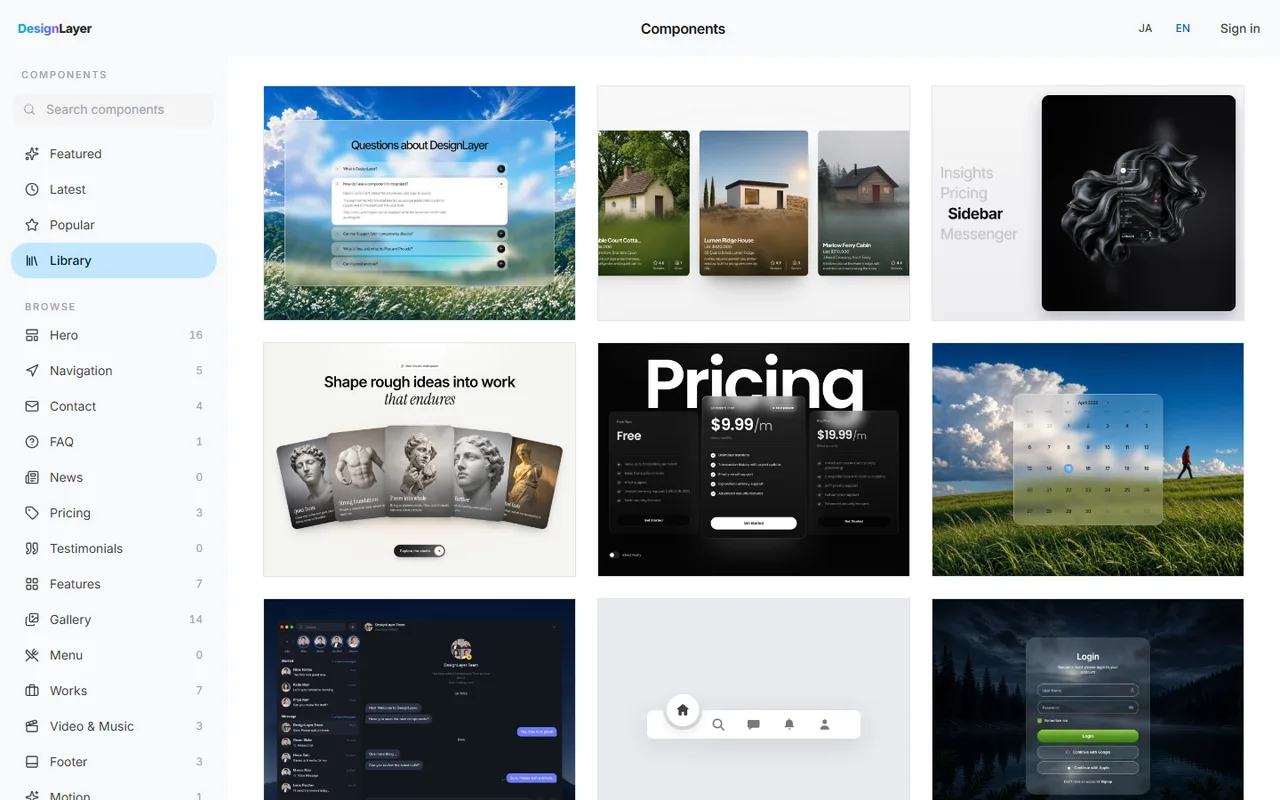
Getting a slowly moving background and a button that alone reacts on hover to feel right can take half a day. If you want to settle the look first, starting from a finished section is another option.
DesignLayer is a catalog of human-built React + Tailwind sections with motion, each with a live preview in the browser. You can check how a pre-footer CTA block or CTA button moves, then grab it with Copy for Cursor. The free quota is the 10 Free Sample components with no monthly limit on a free account, plus 1 video prompt a month. Free cannot connect MCP. The rest of the catalog is the 30-Day Build Pass ($19 once, no auto-renewal), Lifetime Access ($79 once, first 100 buyers), or Plus ($9/month). https://design-layer.com/en/components
When you ask your AI agent to adapt it, be specific about what changes and where it goes, for example: "Replace the heading, button label, and link with my product's. Place it after the FAQ." Results are much more consistent that way.
CTA section checklist before launch
Only one primary button in the section
Links and analytics tags point to the right places
Focus rings are visible when using the keyboard
The heading is not a copy of the hero
Microcopy matches your real terms
Buttons are at least 44px tall on mobile
Next.js CTA section: common questions
Questions that come up often when building a CTA section.
Three spots is the usual baseline: the hero, the pricing table, and the last section of the page. Wherever they appear, they should all point to the same single action.
Summary: building a CTA section in Next.js
The final CTA shows one next step for people who read this far
Fill the primary button and make the secondary an outline or text link
Place an FAQ right before it to clear pricing and cancellation doubts
Limit motion to a one-time staggered reveal of heading and button
Keep microcopy true to your terms and make the button full width on mobile
For the pricing table that usually sits above this section, see https://design-layer.com/en/articles/nextjs-pricing-table-guide and for the footer that closes the page, see https://design-layer.com/en/articles/nextjs-footer-section-guide