Next.js one-page template: how to choose one and ship your LP
Published: September 12, 2026 · 6 min read
Six checks before picking a Next.js one-page landing template, how to add it to an App Router project, match brand colors and fonts, and brief Cursor or Claude.
Deciding whether to start from a Next.js one-page template
You need a landing page for a new product in Next.js, and the deadline is close. You gather a hero, a pricing table, and an FAQ from different places, and the spacing and motion speed don't match — it doesn't read as one page. That's usually when people start wondering whether to build on a finished one-page template.
The rule is simple. If the structure isn't settled yet or the deadline is near, start from a finished page and swap in your copy; it's faster. If you're adding one block to an existing Next.js site, or your brand rules are strict, building section by section gives you more control.
This guide covers:
Why starting from a finished page is faster
Six things to check before choosing a Next.js template
How to add it to an App Router project, with code for matching colors and fonts
An example brief for handing a template to Cursor or Claude
Why a finished one-page template is faster
What makes a landing page look right is less the quality of each section than the rhythm of the whole page. When the spacing between sections, the steps of heading sizes, and the speed and easing of motion all match, the page holds together.
Sections gathered from different sources follow different rules. One hero uses a 64px headline and 160px of padding; a pricing table elsewhere uses 40px and 96px. Reconciling them takes longer than you'd expect.
A finished page has that rhythm from the start. Your decisions shrink to what to say and which sections to keep, so there's less hesitation even while you're still working out the structure.
6 things to check before choosing a one-page template
A template you like is useless if it won't run in your project. Check these first:
Can you see the whole page moving live? (Screenshots don't show motion speed or how it looks on phones)
Does it run on the App Router? (Templates built for the pages directory need rewriting)
Does its Tailwind CSS version match yours? (versions 3 and 4 are configured differently)
Are the required npm packages listed? (motion, formerly framer-motion, and the like)
Is each section in its own file? (One giant file is hard to swap pieces out of)
Do the terms or license allow use on a commercial site?
Check the template on mobile and with reduced motion
A page that looks great on desktop can overflow sideways or feel heavy on a phone. Narrow the preview to check, and if you can, view it with your OS's reduce-motion setting turned on.
Adding a one-page template to the App Router
Once you have a template, work through it in this order:
Create a route group for marketing: app/(marketing)/
Split the template into section files under components/sections/
Match colors and fonts to your brand
Replace the headline, body, and button copy
Delete the sections you don't need
Set metadata (title and description)
Check on a real phone and in a production build
app/
    (marketing)/
      layout.tsx    // header and footer
      page.tsx      // lists the template's sections
    globals.css     // color and font tokens
  components/
    sections/
      Hero.tsx
      Features.tsx
      Testimonials.tsx
      Pricing.tsx
      Faq.tsx
      FinalCta.tsx
Separate it from existing pages with a route group
A folder in parentheses (a route group) isn't part of the URL.
For example, the page.tsx inside (marketing) renders at / and can have its own layout file, so you can use the template's header and footer without touching your app's layout. If app/page.tsx already exists, keep only one of the two.
Move template colors and fonts into CSS variables
If the template hard-codes colors like bg-indigo-600, rebranding means editing every file. With Tailwind CSS v4, define your brand color and font under @theme in globals.css, then replace the template's color classes with names like bg-brand.
@import "tailwindcss";

  @theme {
    --color-brand: #0f766e;
    --color-brand-foreground: #ffffff;
    --font-sans: "Inter", system-ui, sans-serif;
  }
Let the page file just list the sections
With sections split out, reordering or removing one is a one-line change. To change only the hero for each campaign, swap the Hero component.
import type { Metadata } from "next";
  import { Hero } from "@/components/sections/Hero";
  import { Features } from "@/components/sections/Features";
  import { Testimonials } from "@/components/sections/Testimonials";
  import { Pricing } from "@/components/sections/Pricing";
  import { Faq } from "@/components/sections/Faq";
  import { FinalCta } from "@/components/sections/FinalCta";

  export const metadata: Metadata = {
    title: "Acme | Automate your team's invoice review",
    description: "From reading invoices to checking them, Acme shortens your finance team's work.",
  };

  export default function Page() {
    return (
      <>
        <Hero />
        <Features />
        <Testimonials />
        <Pricing />
        <Faq />
        <FinalCta />
      </>
    );
  }
Briefing Cursor or Claude with a one-page template
Paste a template into an AI agent with just "use this," and where it goes and how it's split is left to the agent. Spell out the target path, the split, what to replace, and which colors to use, and the resulting diff is easier to review.
Put this one-page template at app/(marketing)/page.tsx.

  - Split each section into its own file under components/sections/
  - Replace the headlines and CTA copy to fit our product name, "Acme"
  - Use --color-brand from globals.css and replace hard-coded colors like indigo
  - Remove the pricing section; we don't need it yet
  - Add any required npm packages to package.json
  - Default to Server Components; add "use client" only to animated sections
Common one-page template mistakes and fixes
Borrowing the look while the information order doesn't fit your product
Shipping with unused sections and placeholder copy still in place
Skipping the color and font match, so the page looks like a different company from your product
Reusing one template for every campaign page until they're indistinguishable
Forgetting to replace the template's sample images
Information order deserves the most attention. Even if the template goes features, pricing, FAQ, move case studies ahead of pricing if they're your strongest asset. https://design-layer.com/en/articles/nextjs-saas-landing-page-guide explains how to think about section order.
One-page template vs. building section by section
Whether a finished page or individual sections fits better depends on the project:
Launching one new marketing page with a tentative structure → finished page
Adding a hero or pricing table to an existing Next.js site → sections
Strict brand guidelines → sections
Tight deadline and no time for design → finished page
When you build by sections, picking only the animated parts like the hero and CTA from finished work and letting the agent build the rest moves fastest. The flow is in https://design-layer.com/en/articles/cursor-nextjs-landing-page-guide.
DesignLayer sections
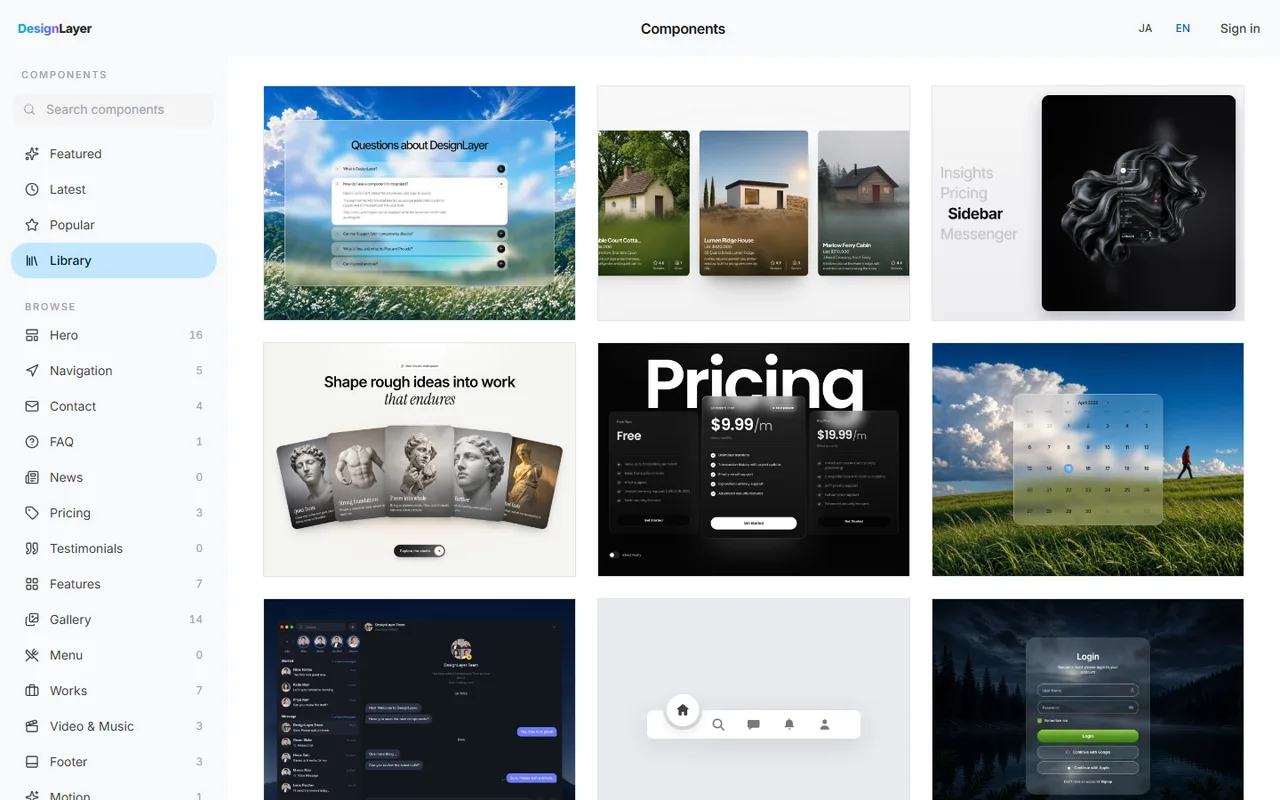
DesignLayer is a catalog of human-built React + Tailwind CSS sections with motion. You preview them live in the browser, then copy.
Browsing and live preview are free and need no card. https://design-layer.com/en/components
Copy for Cursor copies the integration instructions, the live preview URL, the TSX, and the required npm packages together, ready to hand to Cursor or Claude. A free account copies the 10 Free Sample components with no monthly limit, plus 1 video prompt a month. The rest of the catalog and MCP are the 30-Day Build Pass ($19 once), Lifetime Access ($79 once), or Plus ($9/month).
We recommend picking one section with standout motion, such as a hero, adding it to your page, and building the remaining sections to match its rhythm.
Next.js one-page template: common questions
For testing a structure or building an internal page, yes. For a public landing page, confirm the license allows commercial use and that it runs on the App Router with your current Tailwind CSS version.
Summary: building an LP from a one-page template
Tentative structure and a near deadline → finished page; adding to an existing site → sections
Before choosing, check live motion, App Router support, Tailwind CSS version, dependencies, file split, and license
Put it in a route group, split the sections, and move colors and fonts into CSS variables
Reorder sections to fit your product
Brief the agent with the target path and what to replace
Start by writing down the sections your landing page needs and deciding whether a finished page or sections fit better. If you want to begin with an animated section, preview options live in the DesignLayer catalog. https://design-layer.com/en/components