Next.js Timeline Component: Vertical Line and Staggered Steps
Published: September 12, 2026 · 5 min read
Build a vertical timeline in Next.js with Tailwind: a border-l line that never breaks, steps that animate in order with Motion, and a line that grows on scroll.
How to build a timeline people actually read
When you add an onboarding flow or company history to a Next.js landing page, the steps and the text under each one tend to multiply.
To keep a timeline readable, follow three rules:
Use a single vertical column
Keep it to four steps at most
Give each step a heading plus one sentence
Draw the line as a left border on the list, and limit motion to a short entrance as each step scrolls in. If you add a line that grows as you scroll, use it in one place per page.
Why timelines become hard to read
A Tailwind border-l line that survives any content height
Steps that appear in order with Motion (formerly Framer Motion)
A line that grows on scroll, plus mobile checks
Why a one-column, four-step timeline reads best
A timeline exists to show order. The more you pack in, the less visible that order becomes, until it is just a long list.
An alternating timeline makes the eye zigzag
Steps placed on both sides of a center line look striking. Readers, though, keep moving their eyes back and forth, and on mobile the layout collapses to one column anyway.
Designing for one column from the start gives desktop and phone the same reading order.
Long text per step breaks the flow
Three paragraphs per step means a long scroll to the next one, and the overall flow disappears. Keep a heading and one sentence, and move details to another section or article.
The line or the years outshine the text
The line is a guide to reading order. Make it darker or thicker than the text and it is all anyone sees.
Oversized years also overpower the headings, so keep them at body size or slightly smaller.
Build a vertical timeline line with Tailwind that never breaks
Draw the line as the left border (border-l) of the ordered list (ol).
An absolutely positioned long line drifts whenever a step changes height, leaving it too short or overflowing. A border grows with the content on its own.
For each dot, make the step (li) the positioning anchor and place the dot over the line.
Order matters here, so use a numbered list rather than a plain one.
// components/Timeline.tsx
  const steps = [
    { label: "STEP 1", title: "Get in touch", body: "Tell us what you are working on. We reply within 2 business days." },
    { label: "STEP 2", title: "Walk through it together", body: "A 30-minute call to agree on features and timeline." },
    { label: "STEP 3", title: "Try it with real data", body: "Run a two-week trial and get sign-off from your team." },
    { label: "STEP 4", title: "Go live", body: "We carry your settings over and you start using it in production." },
  ];

  export function Timeline() {
    return (
      <section className="mx-auto max-w-2xl px-6 py-24">
        <h2 className="text-3xl font-semibold tracking-tight">How onboarding works</h2>
        <ol className="mt-12 border-l border-zinc-200">
          {steps.map((step) => (
            <li key={step.label} className="relative pb-10 pl-8 last:pb-0">
              <span
                aria-hidden="true"
                className="absolute -left-[5px] top-1.5 h-2.5 w-2.5 rounded-full bg-zinc-900"
              />
              <p className="text-xs font-medium tracking-widest text-zinc-500">{step.label}</p>
              <h3 className="mt-1 text-lg font-semibold">{step.title}</h3>
              <p className="mt-2 text-sm leading-relaxed text-zinc-600">{step.body}</p>
            </li>
          ))}
        </ol>
      </section>
    );
  }
Fixing timeline dots that look off-center
Set the dot's negative left offset to roughly half the dot width plus half the border width. With a 10px dot and a 1px border, -left-[5px] sits close to center.
If you switch to border-l-2, use -left-[6px].
Stagger timeline steps with Framer Motion
If every step appears at once, the timeline loses its sense of order.
Reveal each step once as it scrolls in (whileInView), with a small delay per step. About 0.08 seconds is enough.
The code below swaps each step from the code above for an animatable motion.li. It imports from "motion/react" in the motion package; with framer-motion installed, the same names come from "framer-motion".
// components/AnimatedTimeline.tsx
  "use client";

  import { motion } from "motion/react";

  type Step = { label: string; title: string; body: string };

  export function AnimatedTimeline({ steps }: { steps: Step[] }) {
    return (
      <ol className="mt-12 border-l border-zinc-200">
        {steps.map((step, i) => (
          <motion.li
            key={step.label}
            className="relative pb-10 pl-8 last:pb-0"
            initial={{ opacity: 0, y: 12 }}
            whileInView={{ opacity: 1, y: 0 }}
            viewport={{ once: true, amount: 0.6 }}
            transition={{ duration: 0.4, delay: i * 0.08 }}
          >
            <span
              aria-hidden="true"
              className="absolute -left-[5px] top-1.5 h-2.5 w-2.5 rounded-full bg-zinc-900"
            />
            <p className="text-xs font-medium tracking-widest text-zinc-500">{step.label}</p>
            <h3 className="mt-1 text-lg font-semibold">{step.title}</h3>
            <p className="mt-2 text-sm leading-relaxed text-zinc-600">{step.body}</p>
          </motion.li>
        ))}
      </ol>
    );
  }
Make the timeline respect reduced motion
For people who turn on reduced motion in their OS, drop the movement and keep only the fade. To do that, wrap the app in MotionConfig with reducedMotion="user". Movement such as the vertical slide is then disabled automatically.
Grow the timeline line as the reader scrolls
On a long history timeline, a line that grows with reading progress works as a "you are here" marker. useScroll (the hook that reads scroll progress) tracks how far you are through the section, and you feed that into the line's vertical scale (scaleY).
Layer a colored line over a gray one. origin-top makes it grow from top to bottom.
"use client";

  import { motion, useScroll } from "motion/react";
  import { useRef, type ReactNode } from "react";

  export function ScrollLineTimeline({ children }: { children: ReactNode }) {
    const ref = useRef<HTMLDivElement>(null);
    const { scrollYProgress } = useScroll({
      target: ref,
      offset: ["start center", "end center"],
    });

    return (
      <div ref={ref} className="relative pl-8">
        <div aria-hidden="true" className="absolute left-0 top-0 h-full w-px bg-zinc-200" />
        <motion.div
          aria-hidden="true"
          className="absolute left-0 top-0 h-full w-px origin-top bg-zinc-900"
          style={{ scaleY: scrollYProgress }}
        />
        {children}
      </div>
    );
  }
Cautions for the growing line
Strong step entrances plus a growing line compete for attention. Tone one of them down
Several on one page make every section feel the same. Use it in one place
Keep the line aria-hidden and let the ol order carry the meaning for screen readers
Timeline mobile and pre-launch checklist
A single-column design rarely breaks on mobile. Still, check these before you ship.
On phone widths, the left padding (pl-8) does not squeeze the text too much
The line does not run past the last step (last:pb-0)
Years or step labels are not louder than the headings
Fast scrolling does not leave steps hidden (lower the share of the step that must be on screen if it does)
Copy a finished timeline section
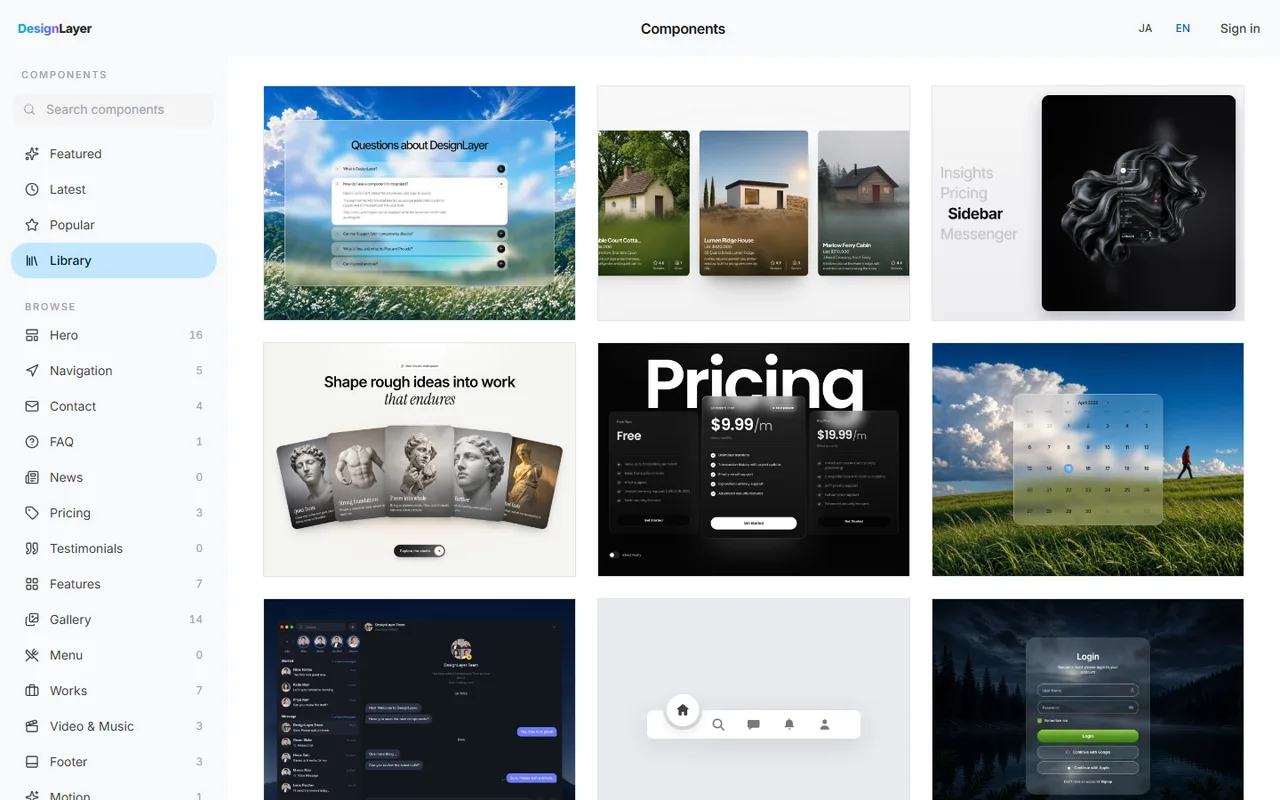
The code above gives you a readable timeline. Tuning the year typography, the rhythm of line and dots, and the entrance speed still takes extra work.
DesignLayer lets you live-preview human-built motion sections in the browser and copy the ones you like. https://design-layer.com/en/components
Swap in your step names and dates and drop it into your landing page.
A free account copies the 10 Free Sample components with no monthly limit on a free account, plus 1 video prompt a month. Free cannot connect MCP. Full catalog copies are the 30-Day Build Pass ($19 once, no auto-renewal), Lifetime Access ($79 once, first 100 buyers), or Plus ($9/month), and live preview is unlimited.
Next.js timeline: common questions
Not for the line and dots; Tailwind classes cover that. Motion keeps the code short once you add staggered entrances or a line that grows on scroll.
Summary: building a timeline in Next.js
One vertical column, four steps at most, a heading and one sentence each
Draw the line as the list's left border and place the dots on top of it
Reveal steps once, in order, as they enter the screen
Limit the scroll-driven line to one place per page
Scroll reveals are covered in https://design-layer.com/en/articles/nextjs-scroll-reveal-guide and features sections in https://design-layer.com/en/articles/nextjs-features-section-guide .
To start from a finished section, compare options in the catalog. https://design-layer.com/en/components