Next.js Hamburger Menu Animation: Open, Close, Mobile-Ready
Published: September 12, 2026 · 6 min read
Build an animated hamburger menu in Next.js: an icon that morphs into an X, a slide-in panel, Escape to close, scroll lock, a focus trap, and exit motion.
Hamburger menu animation in three moves
You built a landing page in Next.js and added a hamburger menu for mobile. It opens, but the page behind it still scrolls, and nobody is sure how to close it. This guide is for that moment.
Three moves are enough for the animation: the three lines turn into an X, a panel slides in from the right, and the background dims. Before any of that, build three behaviors: Escape closes the menu, the page behind stops scrolling, and focus stays inside the menu.
What you will get from this article:
An animated hamburger menu built with Tailwind CSS and no extra libraries
The three-lines-to-X icon
Closing with the Escape key, scroll lock, and focus handling in one place
Exit animation with Motion (formerly Framer Motion)
Why the panel breaks inside a header with a blurred background
Build hamburger menu closing before motion
Someone who opens a mobile menu either wants a link or wants out. Smooth motion does not help if they cannot find the way out. Hard-to-use hamburger menus usually fail in one of three ways.
The page behind keeps scrolling while the menu is open, so users lose their place
Tab moves focus to links behind the overlay, so keyboard and screen reader users get lost
The only way to close is tapping the button again; tapping the backdrop or pressing Escape does nothing
None of these show up in a screenshot. So build in this order: closing first, animation second.
Keep page.tsx as a Server Component and put "use client" (the marker that says this component runs in the browser) only on the menu file. Only the menu holds state, so the whole page does not need to run in the browser.
Build a hamburger menu with Tailwind CSS
Start without extra libraries. One open state drives three sets of classes: the icon, the backdrop, and the panel. The panel always stays in the DOM; when closed, invisible and translate-x-full push it off screen.
The code below works as-is as components/MobileNav.tsx. Swap in your own links.
"use client";

  import { useEffect, useRef, useState } from "react";
  import { usePathname } from "next/navigation";

  const links = [
    { href: "#features", label: "Features" },
    { href: "#pricing", label: "Pricing" },
    { href: "#faq", label: "FAQ" },
  ];

  export function MobileNav() {
    const [open, setOpen] = useState(false);
    const rootRef = useRef<HTMLDivElement>(null);
    const buttonRef = useRef<HTMLButtonElement>(null);
    const pathname = usePathname();

    // Close on route change
    useEffect(() => {
      setOpen(false);
    }, [pathname]);

    useEffect(() => {
      if (!open) return;
      const button = buttonRef.current;
      const prevOverflow = document.body.style.overflow;
      document.body.style.overflow = "hidden";
      rootRef.current?.querySelector<HTMLElement>("nav a")?.focus();

      const onKeyDown = (e: KeyboardEvent) => {
        if (e.key === "Escape") {
          setOpen(false);
          return;
        }
        if (e.key !== "Tab" || !rootRef.current) return;
        const items = rootRef.current.querySelectorAll<HTMLElement>("button, nav a");
        const first = items[0];
        const last = items[items.length - 1];
        if (e.shiftKey && document.activeElement === first) {
          e.preventDefault();
          last.focus();
        } else if (!e.shiftKey && document.activeElement === last) {
          e.preventDefault();
          first.focus();
        }
      };
      window.addEventListener("keydown", onKeyDown);

      return () => {
        document.body.style.overflow = prevOverflow;
        window.removeEventListener("keydown", onKeyDown);
        button?.focus();
      };
    }, [open]);

    return (
      <div ref={rootRef} className="md:hidden">
        <button
          ref={buttonRef}
          type="button"
          aria-expanded={open}
          aria-controls="mobile-nav"
          aria-label={open ? "Close menu" : "Open menu"}
          onClick={() => setOpen((v) => !v)}
          className={`relative z-[60] grid h-10 w-10 place-items-center transition-colors ${open ? "text-white" : "text-zinc-900"}`}
        >
          <span aria-hidden className="relative block h-4 w-6">
            <span className={`absolute left-0 top-0 h-0.5 w-6 bg-current transition-transform duration-300 motion-reduce:transition-none ${open ? "translate-y-[7px] rotate-45" : ""}`} />
            <span className={`absolute left-0 top-[7px] h-0.5 w-6 bg-current transition-opacity duration-200 ${open ? "opacity-0" : ""}`} />
            <span className={`absolute bottom-0 left-0 h-0.5 w-6 bg-current transition-transform duration-300 motion-reduce:transition-none ${open ? "-translate-y-[7px] -rotate-45" : ""}`} />
          </span>
        </button>

        <div
          aria-hidden
          onClick={() => setOpen(false)}
          className={`fixed inset-0 z-40 bg-black/50 transition-opacity duration-300 ${open ? "opacity-100" : "pointer-events-none opacity-0"}`}
        />

        <nav
          id="mobile-nav"
          aria-label="Main menu"
          className={`fixed inset-y-0 right-0 z-50 flex h-dvh w-4/5 max-w-sm flex-col gap-6 bg-zinc-950 px-8 pt-24 text-lg text-white transition-[transform,visibility] duration-300 ease-out motion-reduce:transition-none ${open ? "visible translate-x-0" : "invisible translate-x-full"}`}
        >
          {links.map((link) => (
            <a key={link.href} href={link.href} onClick={() => setOpen(false)}>
              {link.label}
            </a>
          ))}
        </nav>
      </div>
    );
  }
Turn the hamburger's three lines into an X
Place three 2px lines (top, middle, bottom) inside a 16px-tall box. When open, move the top line down 7px and rotate it 45 degrees, move the bottom line up 7px and rotate it -45 degrees, and fade out the middle line.
Because the move and the rotation happen together, the lines cross at the center. The 7px is half of (box height minus line thickness), that is, half of 16 − 2. Change the box height and update that value too.
Slide the menu panel, fade the backdrop
The panel moves from off screen (translate-x-full) to its resting place (translate-x-0) over 0.3 seconds. An ease-out curve starts fast and settles slowly, which feels like pulling a drawer. The backdrop only changes opacity.
invisible on the closed panel keeps Tab from landing on off-screen links. With transition-[transform,visibility], the panel hides only after it finishes sliding out, so the close animation is not cut short.
Escape key, scroll lock, and focus handling in one place
While the menu is open (open is true), two things run. Background scrolling stops because body overflow is set to hidden.
Key presses are watched through the keydown event, and Escape closes the menu. When Tab moves past the last item, focus wraps to the first one. That is the focus trap.
When the menu closes, the cleanup restores the scroll setting and returns focus to the hamburger button. Keyboard users never lose their place after closing.
To keep screen reader browsing out of the page behind too, add the inert attribute to main (or other background content) while the menu is open.
Stop the animation for reduced-motion users
For users who turned on reduced motion in their OS, motion-reduce:transition-none stops the animation. The menu still opens and closes; only the motion goes away.
Hamburger menu exit motion with Framer Motion
To stagger the links one by one, Motion helps (install the motion package and import from motion/react; the older framer-motion package exposes the same API). Wrap elements in AnimatePresence, a wrapper that animates leaving elements, and they can play an exit animation before they disappear.
Keep the key handling and scroll lock from the previous code as they are. Replace only the backdrop and panel markup.
import { AnimatePresence, motion } from "motion/react";

  // Inside MobileNav's return, replace the backdrop and panel with this
  <AnimatePresence>
    {open && (
      <motion.div
        key="overlay"
        aria-hidden
        onClick={() => setOpen(false)}
        className="fixed inset-0 z-40 bg-black/50"
        initial={{ opacity: 0 }}
        animate={{ opacity: 1 }}
        exit={{ opacity: 0 }}
      />
    )}
    {open && (
      <motion.nav
        key="panel"
        id="mobile-nav"
        aria-label="Main menu"
        className="fixed inset-y-0 right-0 z-50 flex h-dvh w-4/5 max-w-sm flex-col gap-6 bg-zinc-950 px-8 pt-24 text-lg text-white"
        initial={{ x: "100%" }}
        animate={{ x: 0 }}
        exit={{ x: "100%" }}
        transition={{ type: "tween", duration: 0.3, ease: "easeOut" }}
      >
        {links.map((link, i) => (
          <motion.a
            key={link.href}
            href={link.href}
            onClick={() => setOpen(false)}
            initial={{ opacity: 0, x: 16 }}
            animate={{ opacity: 1, x: 0 }}
            transition={{ delay: 0.12 + i * 0.05 }}
          >
            {link.label}
          </motion.a>
        ))}
      </motion.nav>
    )}
  </AnimatePresence>
Keep the menu item stagger around 50ms
At 100ms or more per link, users wait for the last item. With five links, keep the whole sequence under 0.4 seconds so it feels like a menu, not a show.
In this version the panel is not in the DOM while closed, so invisible is not needed. Focus must move only after the panel renders, which the useEffect already handles.
Build the hamburger menu on a Dialog primitive
Focus trapping, scroll lock, Escape, and screen reader announcements are easy to get partly wrong by hand. A headless primitive such as Radix UI's Dialog (logic without styling) covers them out of the box.
If you use shadcn/ui, Sheet is the closest fit: a panel that slides from the edge of the screen, styled with Tailwind classes. For admin screens where reliability matters more than look, it saves rework.
A primitive gives you the mechanics only. The hamburger icon, link entrance, and overall header design are still yours to build.
Common hamburger menu mistakes and fixes
backdrop-blur on the header clips the menu panel
Translucent headers often use backdrop-blur. Per the CSS spec, a fixed element inside an element with backdrop-filter or transform is positioned relative to that element, not the viewport. The panel gets trapped inside the header's height.
Two fixes: put the blur on a separate background div instead of the header itself, or render the panel under body with React's createPortal. For the full header build, see https://design-layer.com/en/articles/nextjs-modern-header-guide
100vh cuts off the bottom of the menu
Mobile browsers change viewport height as the address bar shows and hides. h-screen (100vh) can hide the bottom of the panel. Use h-dvh.
The menu stays open after navigation
With App Router Links, a header in the layout does not remount. Close the menu when usePathname changes so it does not stay open on the next page.
The hamburger still shows on desktop widths
Put md:hidden on the whole mobile menu and hidden md:flex on the desktop links. Resize the browser across the breakpoint to make sure both never show at once.
Use a finished header with a hamburger menu
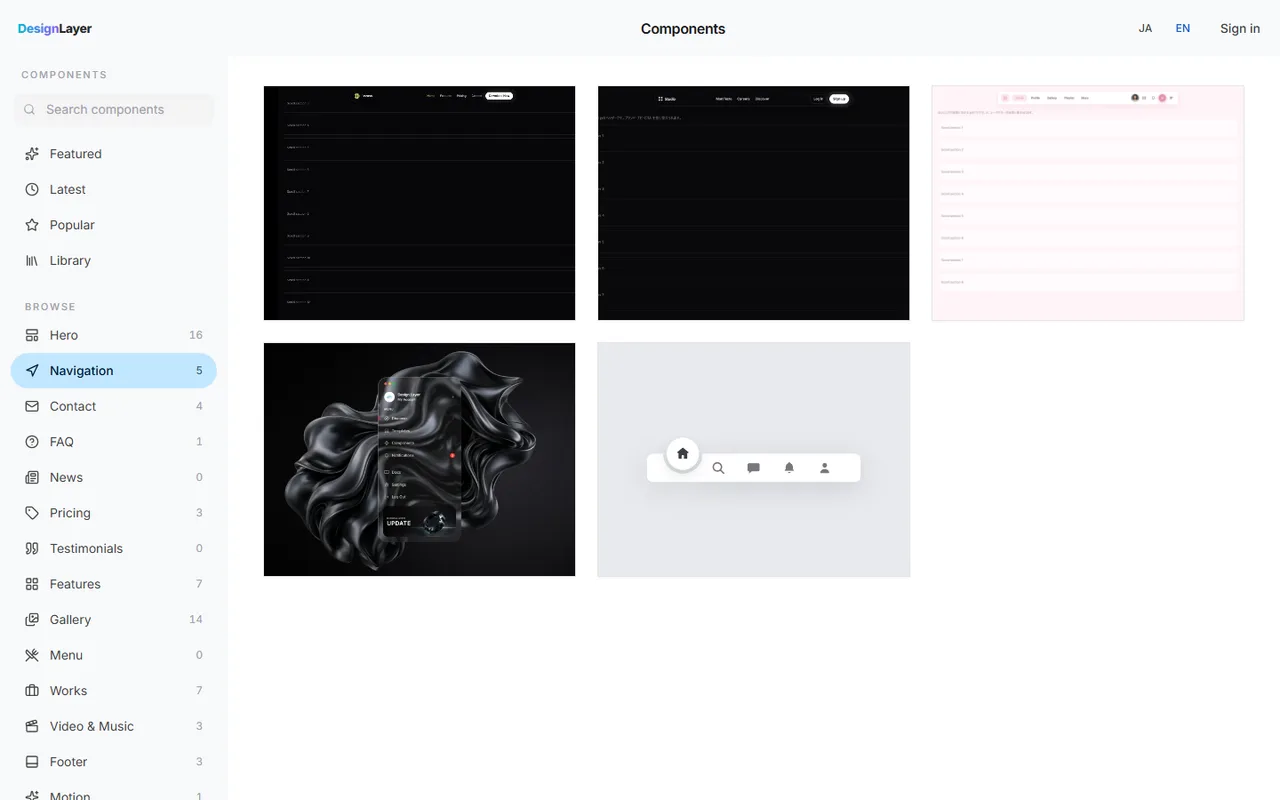
A transparent fixed header on desktop plus a full-screen menu on mobile: building that pair from scratch adds header work on top of this article's code, and tuning takes time.
DesignLayer is a catalog of human-built React + Tailwind motion sections you can live-preview in the browser, then copy. Browsing needs no account and no card. https://design-layer.com/en/components
A free account copies the 10 Free Sample components with no monthly limit on a free account, plus 1 video prompt a month. Free cannot connect MCP. The rest of the catalog is the 30-Day Build Pass ($19 once, no auto-renewal), Lifetime Access ($79 once, first 100 buyers), or Plus ($9/month). If you want the nav and the hero on the same day, plan your copies. After copying, swap only link labels and targets.
Hamburger menu animation: common questions
Yes. The first code sample runs on useState and Tailwind CSS transitions alone. Add Motion when you want staggered links or finer control over the exit.
Summary: building a hamburger menu in Next.js
Three moves are enough: icon to X, slide-in panel, dimmed backdrop
Build closing with a key, scroll lock, and a focus trap first
Use Motion for exit motion and staggered links
Inside a header with a blurred background, the panel gets clipped; move the blur to its own layer or render the panel directly under body
Paste the MobileNav above and test it on a real phone. For the full header, read https://design-layer.com/en/articles/nextjs-modern-header-guide and for motion basics, https://design-layer.com/en/articles/nextjs-framer-motion-guide