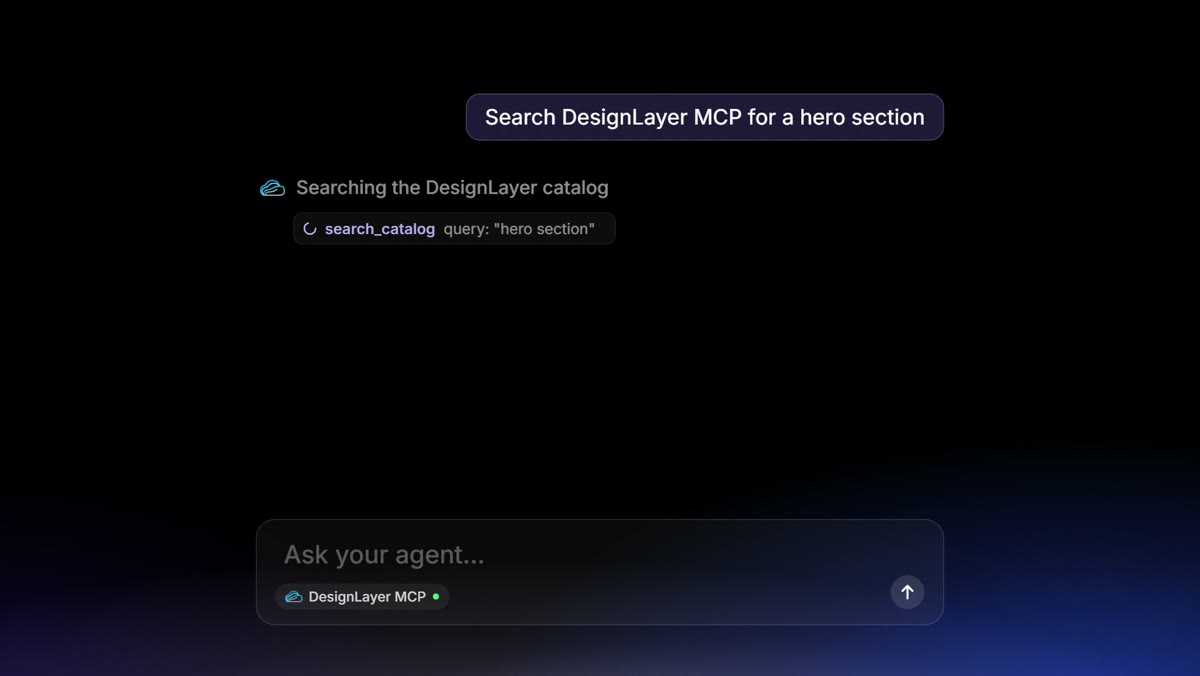
shadcn/ui Landing Page with Motion: Setup and Animated Sections
Published: September 12, 2026 · 5 min read
Your shadcn/ui landing page looks tidy but forgettable? Next.js setup from init to add button, a Framer Motion hero, and how to add finished motion sections.
Your shadcn/ui landing page is tidy but forgettable
Build a landing page with Next.js and shadcn/ui and the buttons and cards line up nicely. Yet when you review it before launch, it looks like a page you have seen before.
Maybe you tried to add a bit of motion to the hero, opened the Motion (formerly Framer Motion) docs, and lost the afternoon.
This guide shows how to add motion to a landing page while keeping shadcn/ui as the foundation. If you have not installed shadcn/ui yet, the Next.js setup steps are included, starting from the first setup command.
Why shadcn/ui wins, and why landing-page motion gets pushed back
shadcn/ui is popular for four main reasons, all tied to owning components as your own code:
Component code lives in your repo, so you can edit look and behavior directly
The default styling is solid, so you do not start from zero
The CLI (a command-line tool) lets you add only the parts you use, one at a time
Parts sit as readable source, which makes them easy context for agents like Cursor
What shadcn/ui gives you, though, are primitives — the smallest UI building blocks, like buttons and dialogs. It does not ship landing-page sections such as heroes or pricing blocks with spacing and motion worked out. Those you assemble yourself.
Writing motion by hand means tuning entrance timing, scroll linkage, and hover feel one by one, and a single section can take half a day.
Near a deadline, that is the first thing cut. The result is a landing page that is tidy but forgettable.
Keep shadcn/ui as the base and add motion per section
The idea is simple. Let shadcn/ui handle the foundation — forms, buttons, dialogs — and add motion separately, one section at a time.
You are not replacing shadcn/ui; you are placing animated blocks next to it.
Small motion is quick to write yourself. To fade in a hero heading and buttons in sequence, Motion is enough, and the shadcn/ui Button works as is.
"use client";

  import { motion } from "motion/react";
  import { Button } from "@/components/ui/button";

  export function HeroSection() {
    return (
      <section className="mx-auto max-w-3xl px-6 py-24 text-center">
        <motion.h1
          initial={{ opacity: 0, y: 24 }}
          animate={{ opacity: 1, y: 0 }}
          transition={{ duration: 0.6, ease: "easeOut" }}
          className="text-4xl font-semibold tracking-tight sm:text-5xl"
        >
          All your team’s work on one screen
        </motion.h1>
        <motion.div
          initial={{ opacity: 0, y: 16 }}
          animate={{ opacity: 1, y: 0 }}
          transition={{ duration: 0.6, delay: 0.15, ease: "easeOut" }}
          className="mt-8 flex justify-center gap-3"
        >
          <Button size="lg">Start free</Button>
          <Button size="lg" variant="outline">
            See the docs
          </Button>
        </motion.div>
      </section>
    );
  }
Run only the animated section in the browser
A file that animates needs "use client" at the top — the marker that says this part runs in the browser. In the example, that is HeroSection, which uses motion.
Keep the page itself (app/page.tsx) rendered on the server, and let it just import the animated section. Limiting browser-side code to that one section keeps the page’s JavaScript in check.
If the animation library is not installed yet, add it first with npm install motion (or pnpm add motion); the package was formerly framer-motion.
Know where to stop writing Framer Motion yourself
For a heading fade-in, the code above is plenty. Scroll-linked backgrounds or a pricing table whose cards assemble in sequence are a different scale of tuning. For those, picking a section whose motion is already finished and bringing it in is faster.
Installing shadcn/ui in Next.js
If shadcn/ui is not in your project yet, start here. These steps focus on an existing Next.js project and use pnpm; the official docs list npm, yarn, and bun too. Always treat https://ui.shadcn.com/docs/installation/next as the source of truth.
Check the prerequisites for shadcn/ui
You need Node.js, Next.js (App Router assumed), Tailwind CSS, and the @/* alias (a shortcut for import paths). A project made with create-next-app’s recommended defaults mostly has these.
With a src folder, the alias must point to ./src/*. On older Next.js projects without Tailwind or path settings, read the official Existing Project section first.
For a new project, you can also start from the official shadcn/create or pnpm dlx shadcn@latest init -t next. https://ui.shadcn.com/docs/installation
1. Run the shadcn/ui setup command
From the project root, run the following and answer the prompts to choose a style and base settings.
pnpm dlx shadcn@latest init2. Add one button with the add command
Once setup finishes, add the button part as a quick check.
pnpm dlx shadcn@latest add button3. Check the button on a page
Import Button in your home page file (app/page.tsx) and check it in the browser. With a src folder, the code is the same; only the location changes to src/app/page.tsx.
import { Button } from "@/components/ui/button";

  export default function Home() {
    return (
      <div className="flex min-h-svh items-center justify-center">
        <Button>Click me</Button>
      </div>
    );
  }
4. See what landed in your repo
Typically you will see the following (paths vary with your config):
Source files for the parts you added, in the parts folder (@/components/ui/)
Small shared helpers (lib/utils) and CSS variables for colors and the like
As needed, libraries the parts build on, such as Radix packages and a helper for switching style variants
The point is that component code is added to your repo, not just a package import. Even if Cursor ran the install, open the parts folder at the end and read the diff so you know what happened.
Common snags when installing shadcn/ui
The @/* alias does not resolve: check the path settings in tsconfig.json
With or without a src folder, the alias points to the wrong place
Your existing Tailwind version or config differs: follow the official steps for existing projects
In a monorepo (several apps in one repo), new setups use init with --monorepo; for an existing app, run the CLI in that app's folder or pass -c apps/web
When stuck, go back to the official Next.js guide rather than copying commands from blog posts.
Add motion sections to a shadcn/ui landing page with DesignLayer
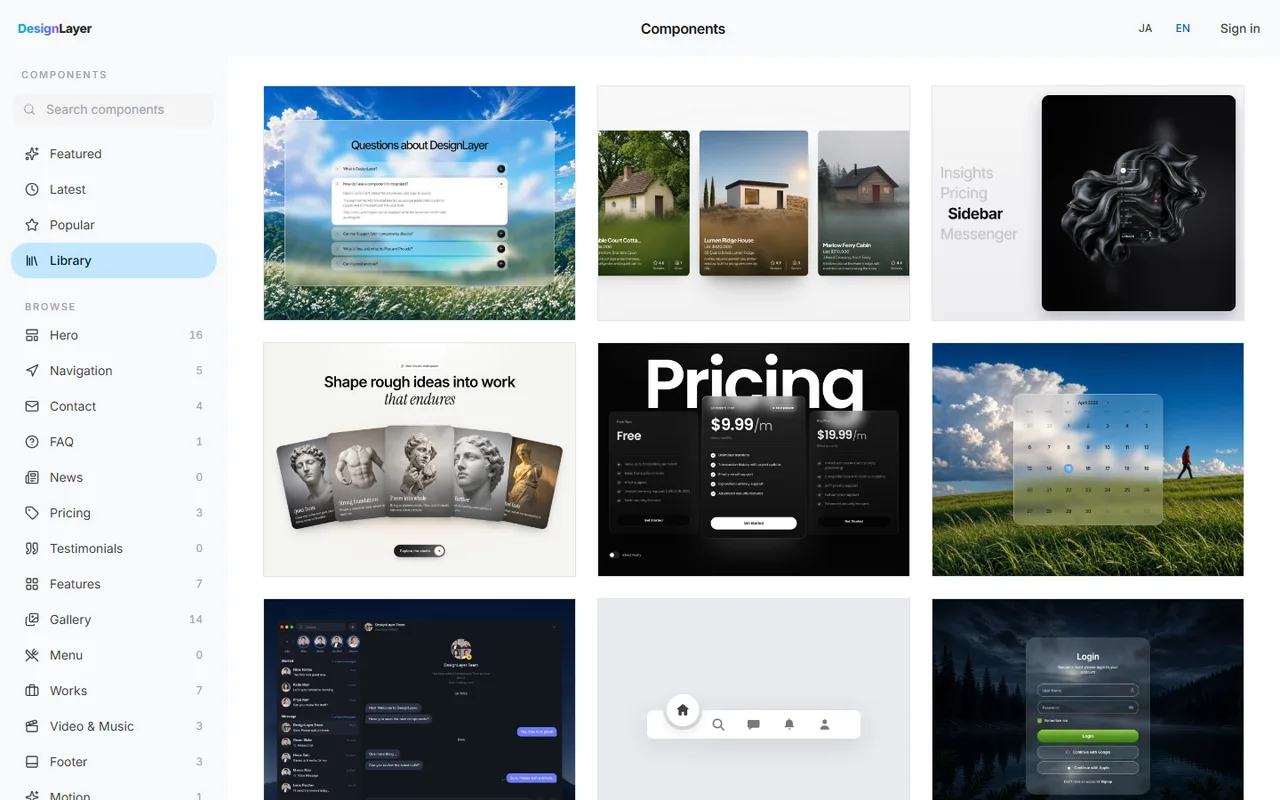
With the shadcn/ui base in place, add the sections that move. DesignLayer is a catalog of human-built React + Tailwind sections with motion that you watch as live previews in the browser and then copy.
It is meant to sit next to shadcn/ui, not replace it.
Filter the component list by use: hero, pricing, FAQ, and so on
Open a card and check hover and entrance motion in the live preview
Use Copy for Cursor to copy integration instructions, the live preview URL, the TSX, and npm dependencies together
Paste into Cursor’s Agent or Claude’s chat and ask for placement and copy swaps
Add “match our existing shadcn/ui tokens (colors, spacing)” when you paste, and the section will not float apart from the base. Details: https://design-layer.com/en/docs/copy-for-cursor and https://design-layer.com/en/docs/live-preview.
Who shadcn/ui plus motion sections is for
Your shadcn/ui base is done, but the landing page feels weak
You want motion but cannot spend half a day tuning Motion
You want Cursor or Claude to do the integration while you review motion and copy
For pages that barely need motion, like an admin dashboard, shadcn/ui alone is enough. Look at the catalog when motion actually becomes a need.
Browsing and live preview are free with no account or card. A free account copies the 10 Free Sample components with no monthly limit. Full catalog copies and MCP are the 30-Day Build Pass ($19 once, no auto-renewal), Lifetime Access ($79 once, first 100 buyers), or Plus ($9/month).
Choosing between shadcn/ui and other Tailwind libraries? See Tailwind Plus Alternatives in 2026.
shadcn/ui landing pages and motion: common questions
It covers basic motion such as components opening and closing, but motion that stages landing-page sections is yours to add. Pairing it with Motion, as in the example above, is the common approach.
Summary: adding motion to a shadcn/ui landing page
shadcn/ui’s strength is owning basic parts as your own code; section motion is up to you
Keep shadcn/ui as the base and add motion per section, without rewriting the page
Setup order: run setup → add one button → check it on a page → review the new files
Write small motion with Motion; bring in finished sections for the expensive ones
Today, open https://ui.shadcn.com/docs/installation/next and get through add button. When you need motion, pick one hero from the catalog. https://design-layer.com/en/components
Related: building a whole landing page in Cursor is covered in https://design-layer.com/en/articles/cursor-nextjs-landing-page-guide, and Motion basics in https://design-layer.com/en/articles/nextjs-framer-motion-guide.