Next.js Image Carousel and Slider: CSS Scroll Snap vs. Embla
Published: September 12, 2026 · 6 min read
Build an image carousel (slider) in Next.js with library-free CSS scroll snap or Embla Carousel: prev/next buttons, dots, pausable autoplay, and fast next/image.
Start a Next.js image slider with CSS scroll snap
You want a photo slider on a Next.js landing page or product page, and you are stuck between installing a library and writing it yourself. This guide is for that.
Start your image carousel (slider) with CSS scroll snap. Add snap to a horizontal scroller and you get swipe-to-next, one photo at a time, for free. Move to a library like Embla Carousel only when you need looping or momentum dragging.
What you will get from this article:
A library-free image slider with CSS scroll snap
Prev/next buttons and dots
Autoplay, and how to let people stop it
A looping carousel with Embla Carousel
next/image settings that show the first photo fast
Decide whether you need an image carousel at all
A carousel hides everything except the photo in view. Assume slides after the first may never be seen. With three photos or fewer, a grid shows them all.
A carousel fits when:
You want four or more photos in one same-size frame
Shoppers should flip through product photos at their own pace
You do not want the mobile page to get much taller
Photos that change as you scroll are a different component, not a carousel. See https://design-layer.com/en/articles/nextjs-scroll-gallery-guide
Three reasons image sliders frustrate people
Plenty of sliders look fine and still trip people up. Usually it is one of these.
Prev/next buttons disappear against the photo, or cannot be pressed with a keyboard
Swiping does not work on phones, leaving tiny buttons as the only control
Photos have different heights, so the whole page jumps on every slide
CSS scroll snap solves the second one out of the box. Horizontal scrolling is a browser feature, so swipes and trackpads just work. Button design and a fixed aspect ratio handle the other two.
Build an image slider with CSS scroll snap
Give the row of photos overflow-x-auto (allow horizontal scrolling) and snap-x snap-mandatory (always stop on a photo), and give each photo snap-center (stop it in the middle). Swipes now stop one photo at a time, centered.
Keep track of the current slide for the buttons and dots. Scroll position divided by width gives the index.
"use client";

  import Image from "next/image";
  import { useRef, useState } from "react";

  const slides = [
    { src: "/carousel/01.jpg", alt: "White mug on a wooden desk" },
    { src: "/carousel/02.jpg", alt: "The mug seen from the side" },
    { src: "/carousel/03.jpg", alt: "Close-up of the mug handle" },
    { src: "/carousel/04.jpg", alt: "Three mugs in different colors" },
  ];

  export function ImageCarousel() {
    const trackRef = useRef<HTMLDivElement>(null);
    const [index, setIndex] = useState(0);

    const scrollToIndex = (i: number) => {
      const track = trackRef.current;
      if (!track) return;
      const next = Math.max(0, Math.min(slides.length - 1, i));
      track.scrollTo({ left: next * track.clientWidth, behavior: "smooth" });
    };

    const onScroll = () => {
      const track = trackRef.current;
      if (!track) return;
      setIndex(Math.round(track.scrollLeft / track.clientWidth));
    };

    return (
      <section
        aria-roledescription="carousel"
        aria-label="Product photos"
        className="mx-auto max-w-4xl px-6 py-24"
      >
        <div
          ref={trackRef}
          onScroll={onScroll}
          className="flex snap-x snap-mandatory overflow-x-auto rounded-2xl [scrollbar-width:none]"
        >
          {slides.map((slide, i) => (
            <div
              key={slide.src}
              role="group"
              aria-roledescription="slide"
              aria-label={`${i + 1} / ${slides.length}`}
              className="relative aspect-[3/2] w-full shrink-0 snap-center"
            >
              <Image
                src={slide.src}
                alt={slide.alt}
                fill
                sizes="(min-width: 896px) 848px, 100vw"
                className="object-cover"
                priority={i === 0}
              />
            </div>
          ))}
        </div>

        <div className="mt-4 flex items-center justify-between">
          <button
            type="button"
            onClick={() => scrollToIndex(index - 1)}
            disabled={index === 0}
            aria-label="Previous photo"
            className="grid h-10 w-10 place-items-center rounded-full border border-zinc-300 disabled:opacity-30"
          >
            ←
          </button>

          <div className="flex gap-2">
            {slides.map((slide, i) => (
              <button
                key={slide.src}
                type="button"
                aria-label={`Show photo ${i + 1}`}
                aria-current={i === index}
                onClick={() => scrollToIndex(i)}
                className={`h-2 w-2 rounded-full transition-colors ${i === index ? "bg-zinc-900" : "bg-zinc-300"}`}
              />
            ))}
          </div>

          <button
            type="button"
            onClick={() => scrollToIndex(index + 1)}
            disabled={index === slides.length - 1}
            aria-label="Next photo"
            className="grid h-10 w-10 place-items-center rounded-full border border-zinc-300 disabled:opacity-30"
          >
            →
          </button>
        </div>
      </section>
    );
  }
Fix the slider's aspect ratio so the page does not jump
Each slide gets aspect-[3/2], and the photo fills it with fill and object-cover. Even if source photos vary, the frame height never changes, so the page stops jumping between slides.
Put previous and next buttons outside the photo
Buttons overlaid on a photo vanish on bright images. This code places buttons and dots under the photo. If you want them on top, give them a white circular background and a shadow so they stand out on any image.
On the first and last slide, the buttons get disabled and fade. A button that clearly cannot be pressed is kinder than one that silently does nothing.
Carousel dots announce the position with aria-current
Dots should tell screen readers which slide is showing, not just sighted users. Put aria-current on the current one and an aria-label like “Show photo 3.”
Autoplay carousel: build the stop button first
Autoplaying sliders are a common request. But when the photo changes mid-read, users feel control was taken away. If you add autoplay, include all three of these.
A pause/play button
Pausing while the pointer hovers or keyboard focus is inside
No autoplay at all for users who reduce motion in their OS
For product photos, letting shoppers advance slides themselves gets them looked at longer. Save autoplay for mood photos where stopping anywhere is fine.
const [playing, setPlaying] = useState(true);
  const [hovered, setHovered] = useState(false);

  useEffect(() => {
    if (!playing || hovered) return;
    if (window.matchMedia("(prefers-reduced-motion: reduce)").matches) return;

    const id = window.setInterval(() => {
      const track = trackRef.current;
      if (!track) return;
      const current = Math.round(track.scrollLeft / track.clientWidth);
      const next = (current + 1) % slides.length;
      track.scrollTo({ left: next * track.clientWidth, behavior: "smooth" });
    }, 5000);

    return () => window.clearInterval(id);
  }, [playing, hovered]);

  // Add to the section
  // onMouseEnter={() => setHovered(true)}
  // onMouseLeave={() => setHovered(false)}
  // onFocus={() => setHovered(true)}
  // onBlur={() => setHovered(false)}

  // Add to the controls
  <button
    type="button"
    onClick={() => setPlaying((p) => !p)}
    className="rounded-full border border-zinc-300 px-4 py-2 text-sm"
  >
    {playing ? "Pause autoplay" : "Play autoplay"}
  </button>
Advance the slider every 5 seconds or slower
If photos carry short captions, 3 seconds is not enough to read them. Use 5 seconds or more, longer with longer captions. Remember to add useEffect to the import at the top of the file.
Build a looping carousel with Embla Carousel
Looping from the last slide back to the first, momentum after release, syncing with thumbnails: once you need these, a library is faster and more reliable. Embla Carousel is a lightweight headless library, so you style it freely with Tailwind CSS. shadcn/ui's Carousel is built on Embla too.
Install with npm i embla-carousel-react. Keep the structure: the ref goes on the outer viewport, with a flex row inside.
"use client";

  import Image from "next/image";
  import useEmblaCarousel from "embla-carousel-react";

  type Slide = { src: string; alt: string };

  export function EmblaCarousel({ slides }: { slides: Slide[] }) {
    const [emblaRef, emblaApi] = useEmblaCarousel({ loop: true });

    return (
      <section aria-roledescription="carousel" aria-label="Portfolio photos" className="mx-auto max-w-4xl px-6 py-24">
        <div ref={emblaRef} className="overflow-hidden rounded-2xl">
          <div className="flex">
            {slides.map((slide, i) => (
              <div key={slide.src} className="relative aspect-[3/2] min-w-0 flex-[0_0_100%]">
                <Image
                  src={slide.src}
                  alt={slide.alt}
                  fill
                  sizes="(min-width: 896px) 848px, 100vw"
                  className="object-cover"
                  priority={i === 0}
                />
              </div>
            ))}
          </div>
        </div>

        <div className="mt-4 flex justify-between">
          <button type="button" aria-label="Previous photo" onClick={() => emblaApi?.scrollPrev()}>
            ←
          </button>
          <button type="button" aria-label="Next photo" onClick={() => emblaApi?.scrollNext()}>
            →
          </button>
        </div>
      </section>
    );
  }
Adding dots to an Embla carousel
Listen for changes with emblaApi.on("select", ...), read the position with emblaApi.selectedScrollSnap(), and keep it as the current slide. Render the dots the same way as in the scroll snap example.
Run only the carousel in the browser
Embla uses React hooks, so the file needs "use client" (the marker that says this component runs in the browser) at the top. Keep page.tsx on the server and pass the photo array in as props. The rest of the page stays light because it is not pulled into the client bundle.
Choosing a carousel: CSS scroll snap or Embla
Pick by the behavior you need. When unsure, start with scroll snap; switching later is cheap.
CSS scroll snap: one slide at a time, no new dependency, swipe handled by the browser
Embla: looping, momentum dragging, thumbnail or autoplay plugins
Neither: photos that change as the page scrolls belong in a scroll-linked gallery
Copy a finished carousel or gallery instead
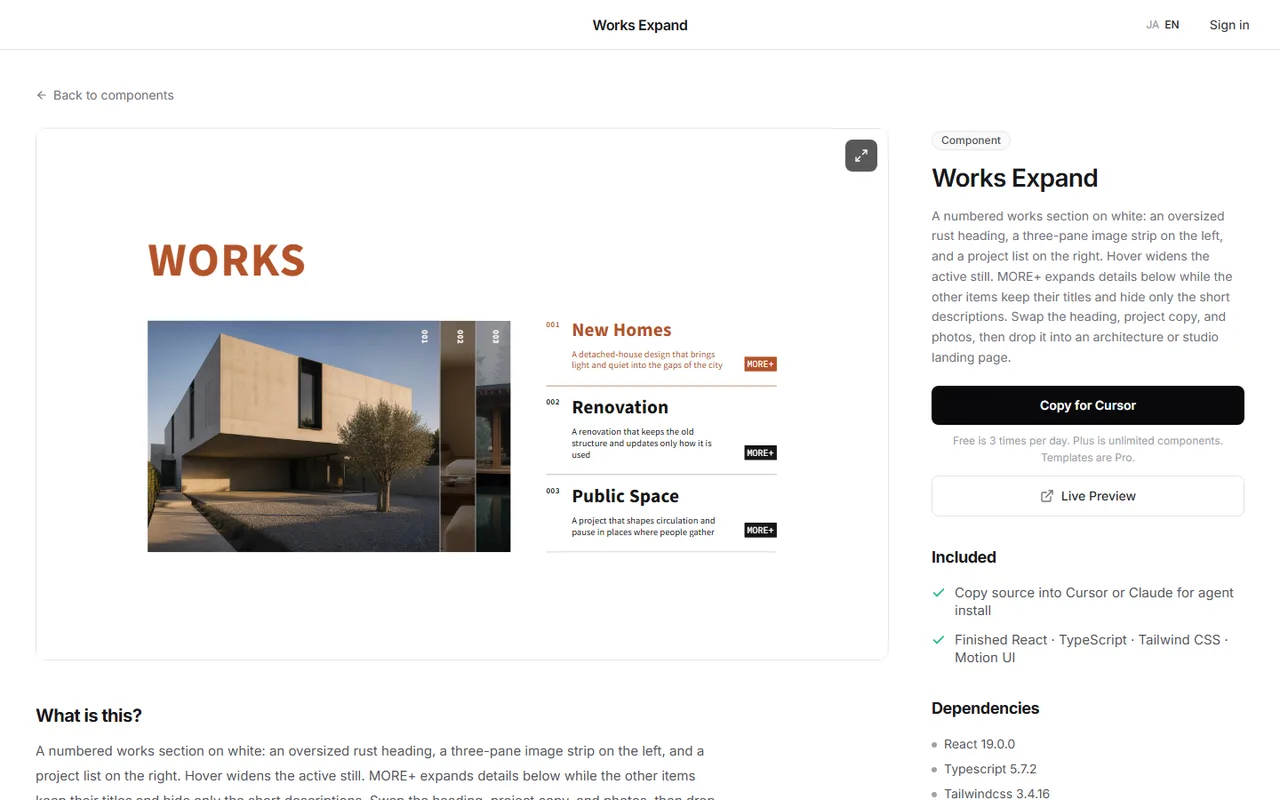
A pinned column of work that swaps as you scroll, or photos that expand on hover, cannot be built from a normal carousel. Watching the real motion first is the quickest way to decide which kind fits.
DesignLayer is a catalog of human-built React + Tailwind motion sections you can live-preview in the browser, then copy. Browsing needs no account and no card. https://design-layer.com/en/components
A free account copies the 10 Free Sample components with no monthly limit on a free account, plus 1 video prompt a month. Free cannot connect MCP. The rest of the catalog is the 30-Day Build Pass ($19 once, no auto-renewal), Lifetime Access ($79 once, first 100 buyers), or Plus ($9/month). After copying, swap only the photo paths and alt text.
Next.js image slider and carousel: common questions
In web work they mean nearly the same thing: a component that swaps images horizontally inside a fixed frame. This article treats both names as one.
Summary: building an image slider in Next.js
Three photos or fewer: use a grid; four or more in one frame: use a carousel
Start with CSS scroll snap and let the browser handle swipes
Fix the aspect ratio; keep buttons outside the photo or on a clear background
Autoplay needs a pause button, pause on hover/focus, and reduced motion support
Move to Embla Carousel when you need looping or momentum
Paste ImageCarousel, swap in your photos, and try it on a phone. For scroll-driven photo changes, see https://design-layer.com/en/articles/nextjs-scroll-gallery-guide and for info on hover over photos, https://design-layer.com/en/articles/nextjs-hover-card-guide